How to Install a Module in perfex CRM
- Click on in Perfex CRM dashboard.
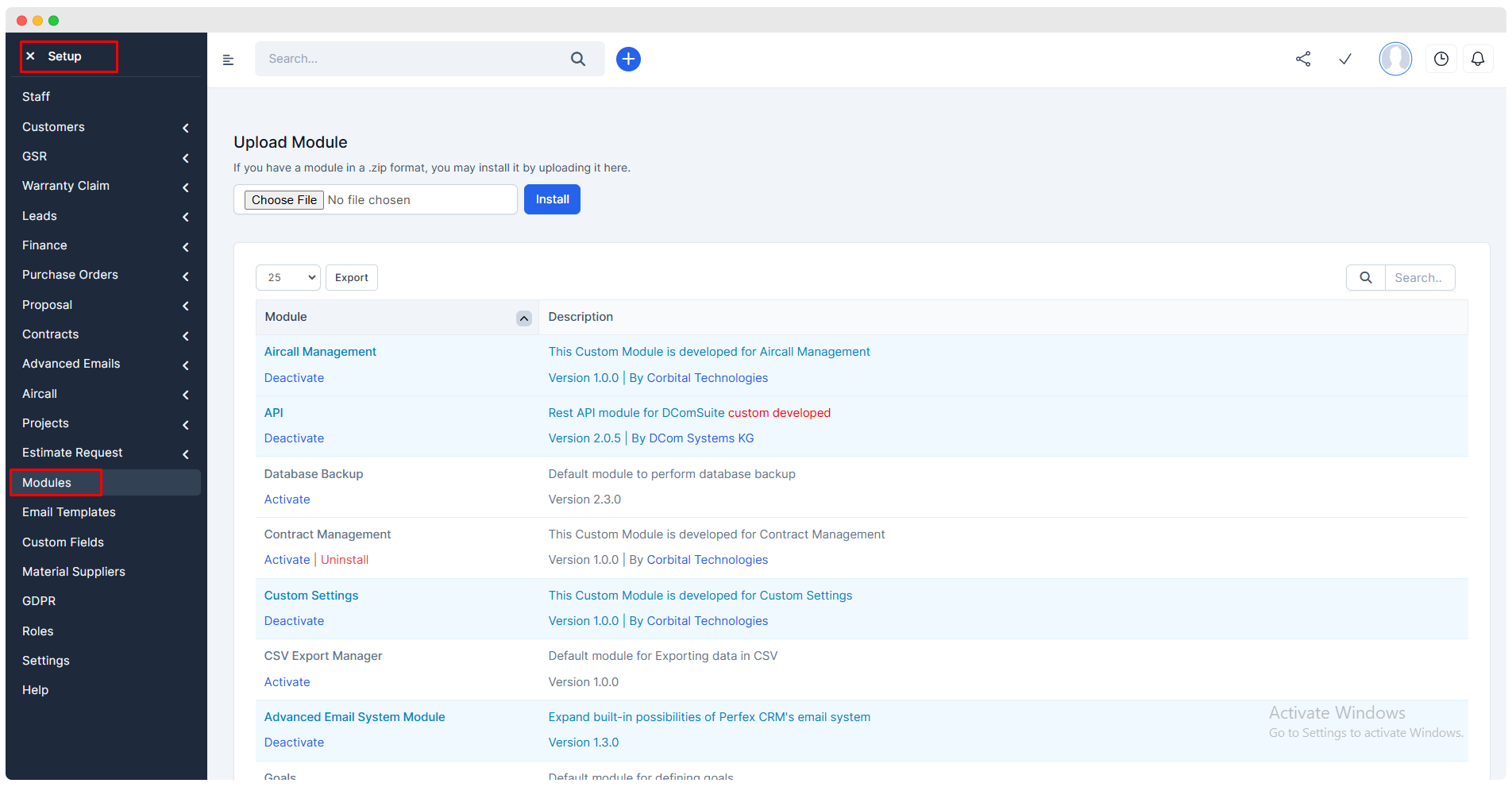
Now, to install a new module, click on
Choose Fileand select the zip file of the module and click oninstallBy default the module would be deactivated, activate it for using its features.
Purchase Order Module
Introduction
Purchase Order Module is design to sent the approximate value to subcontractor .
Purchase Order Module is an customize features of Perfex CRM.
Sales > Purchase Order > New Purchase Order
Creating New Purchase Order
This tab allows user to create a new purchase order form.
This form has three sections
Purchase Order Information,Project Information,Purchase Order Item.
Sections of Purchase Order Form
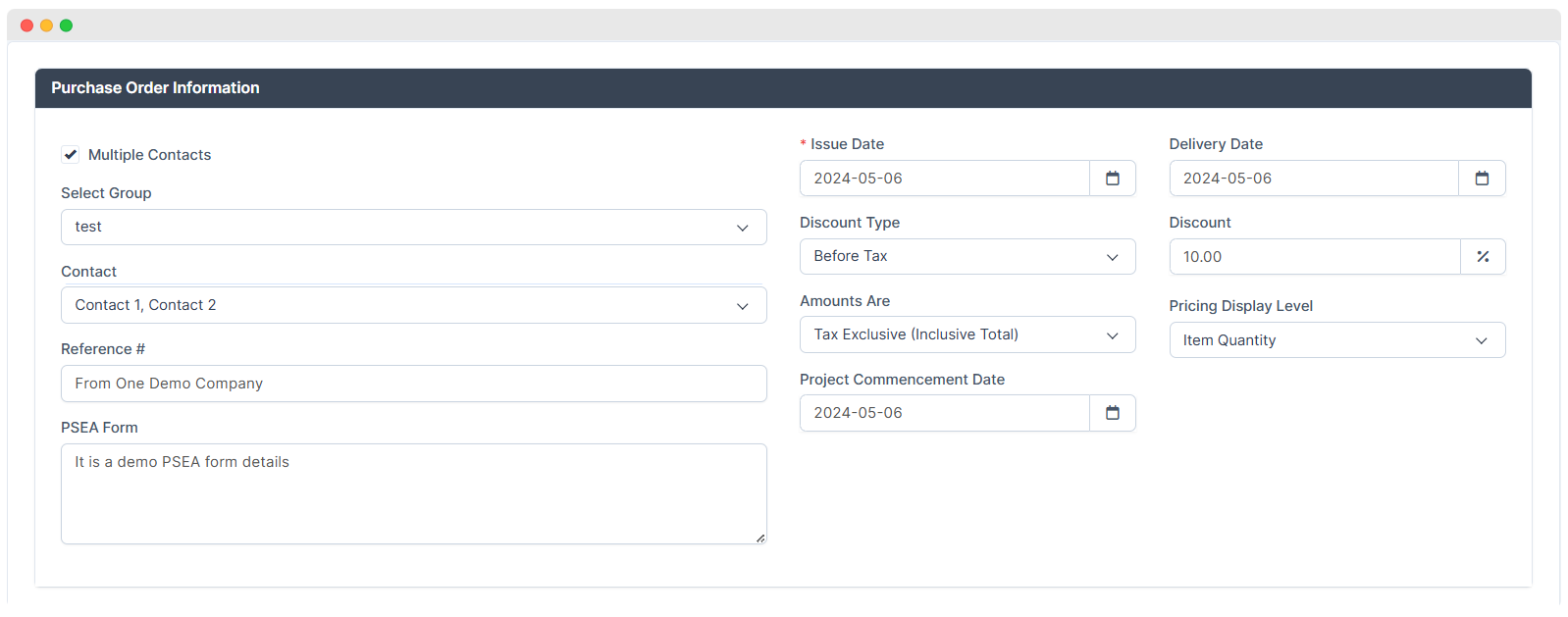
Purchase Order Information
Project Information
Purchase Order Item
Purchase Order Information
Multiple Contacts - If user will select Multiple Contacts Checkbox they will get option to select group .So user can easily create Purchase Order for two or more subcontractor at one time.
Select Group - Select Group will give you the feature of select the group of subcontractor all contact which are included that selected group it will display in contact automatically.
Contact - It will give you the feature to select single contact.
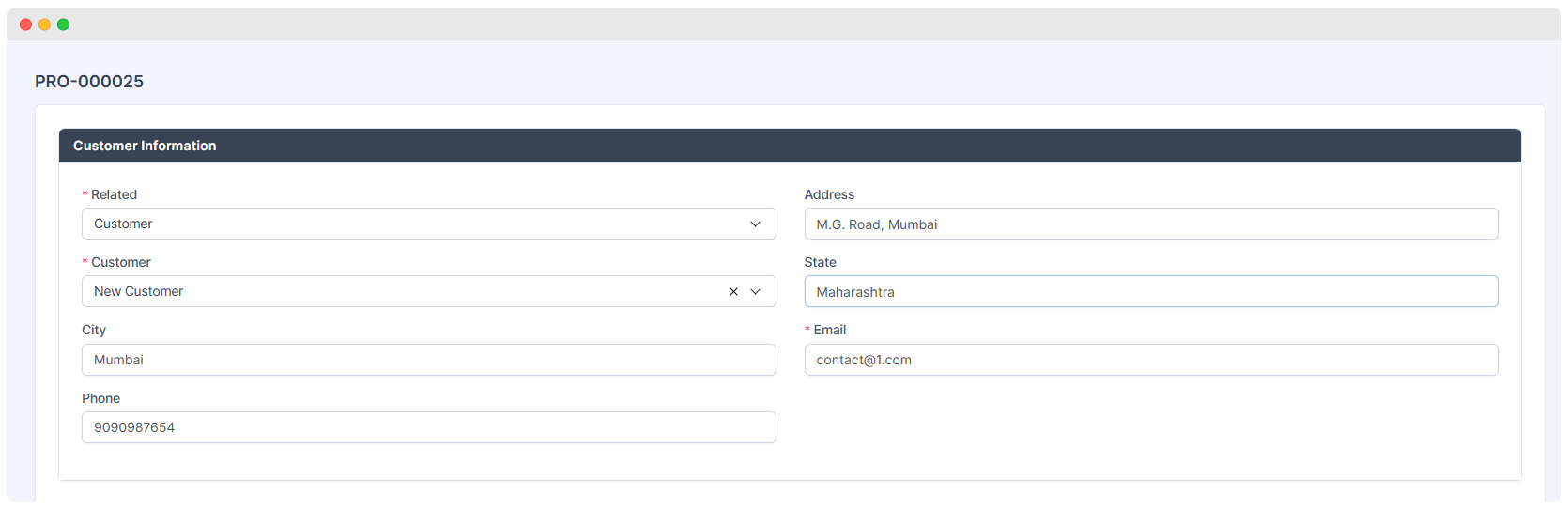
Project information
Related :Project related information.Material Suppliers :- Name of Material Supplier is added in this section.
- Material Suppliers are pre-defined in
Setup > Material Suppliers.
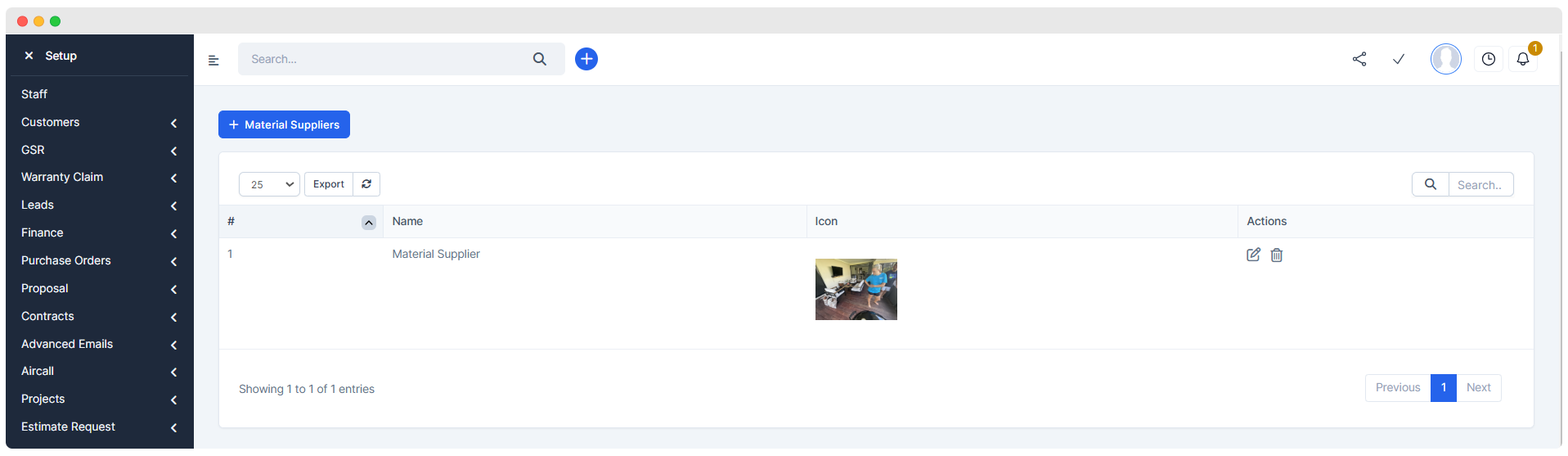
Featured Image :Featured images are attached in this section which will be displayed in the top head section of web view.Add Inclusion , Add Exclusion :These Features are optional for the user.User can also attach multiple images in
Attachmentsection which will be displayed inProject Visual Reportin web view.
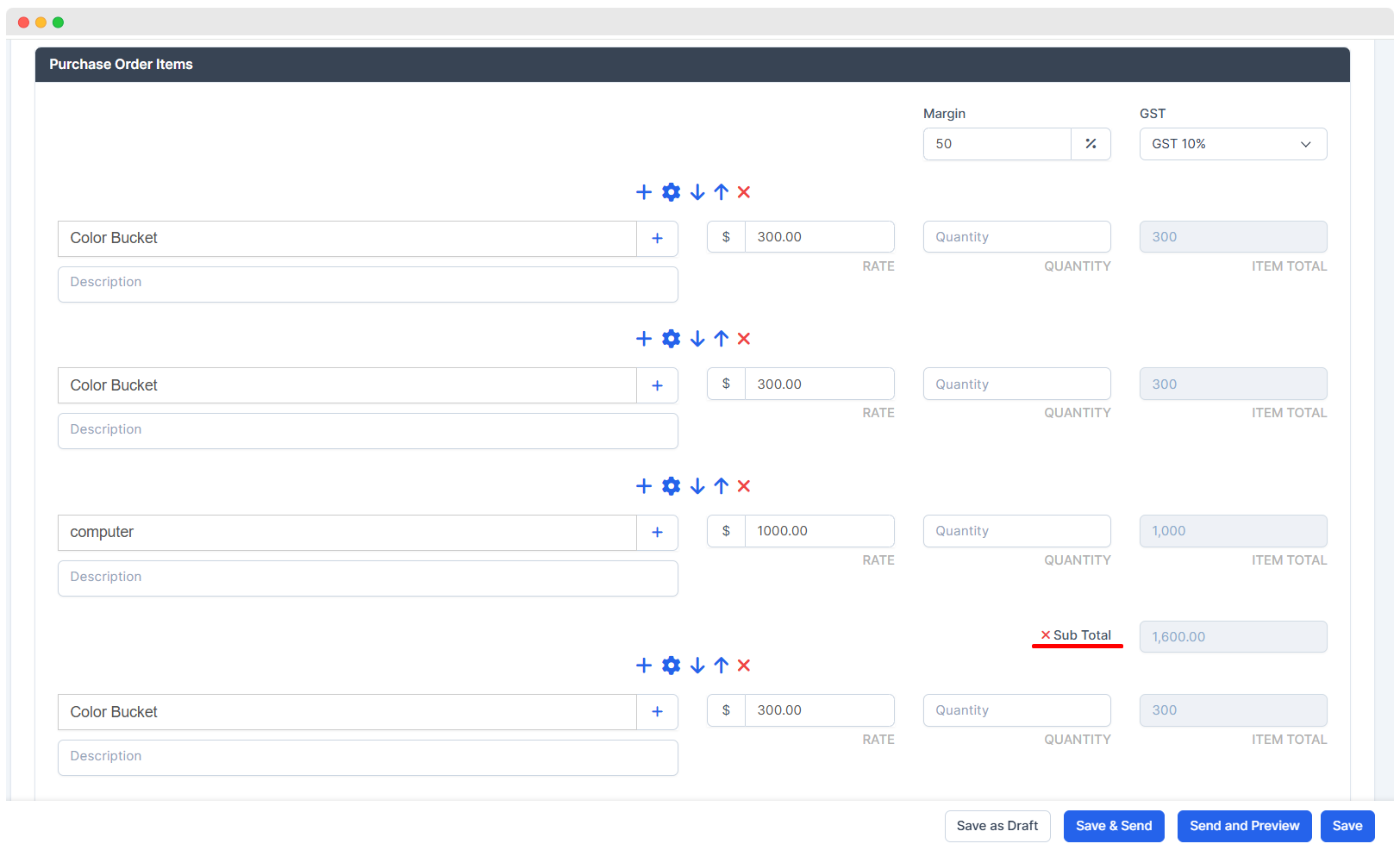
Purchase Order Items
Add Item
Add Item - User will get text box to add item.
Add Subtotal - It will display the total amount of all the above added items.
Optional Item
To provide choice to Customer and it's price is added to grand total.
Displays the check box button to select the optional item.
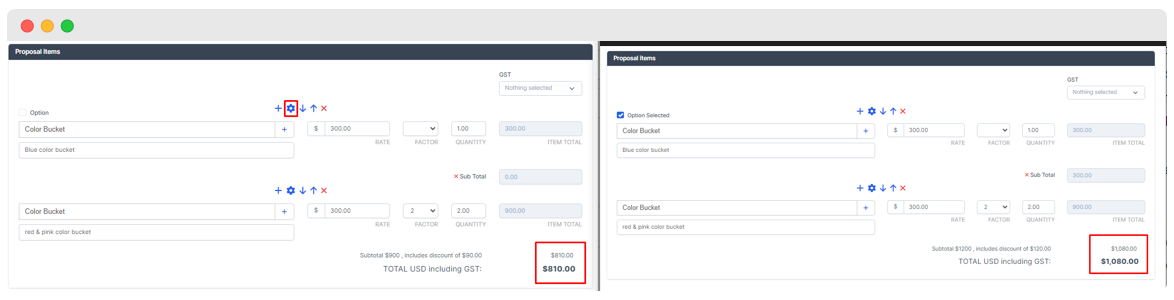
Moves item in
Upwarddirection.Moves item in
Downwarddirection.User can removes item.
Records In Purchase Order
- You can select the
Multiple optionfrom the Purchase Order Information section tosendthesame ordertomultiple subcontractors. - Similarly , the number of records will be displayed in data table .
- Among the subcontractors to whom the purchase order is sent through mail , the one who
acceptsit first will beapprovedand therestwill berejected.
Landing Page Of Purchase Order
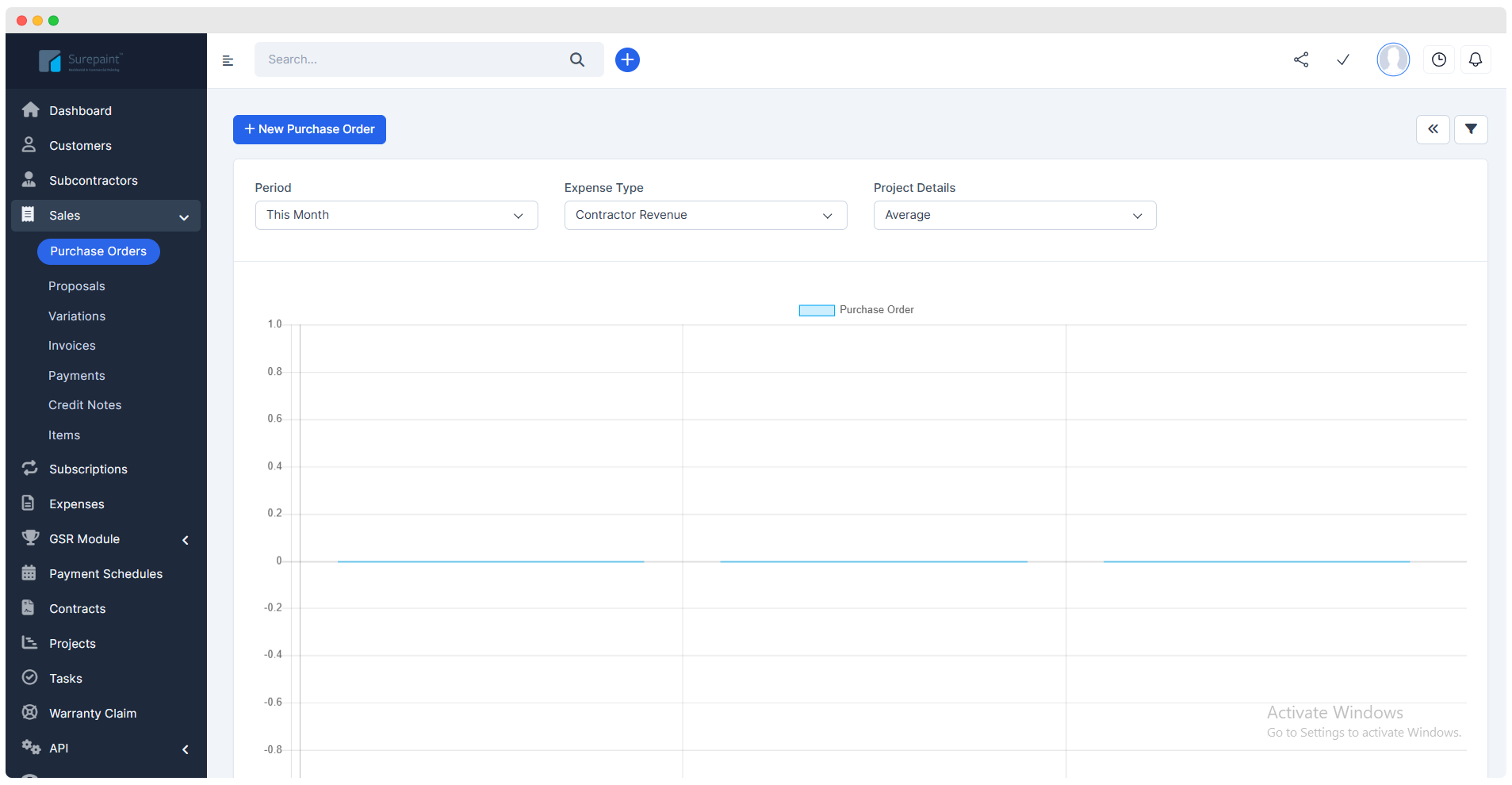
The landing page of Purchase Order shows the following sections
1. Filters
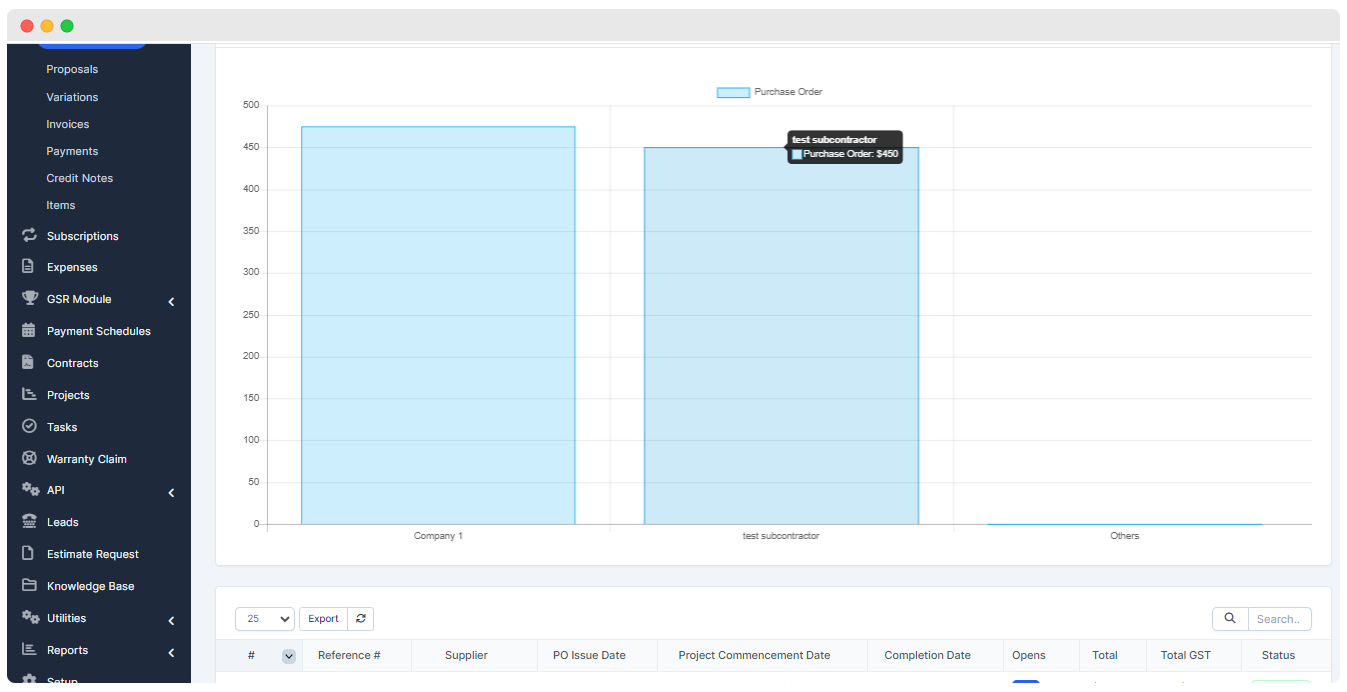
2. Charts
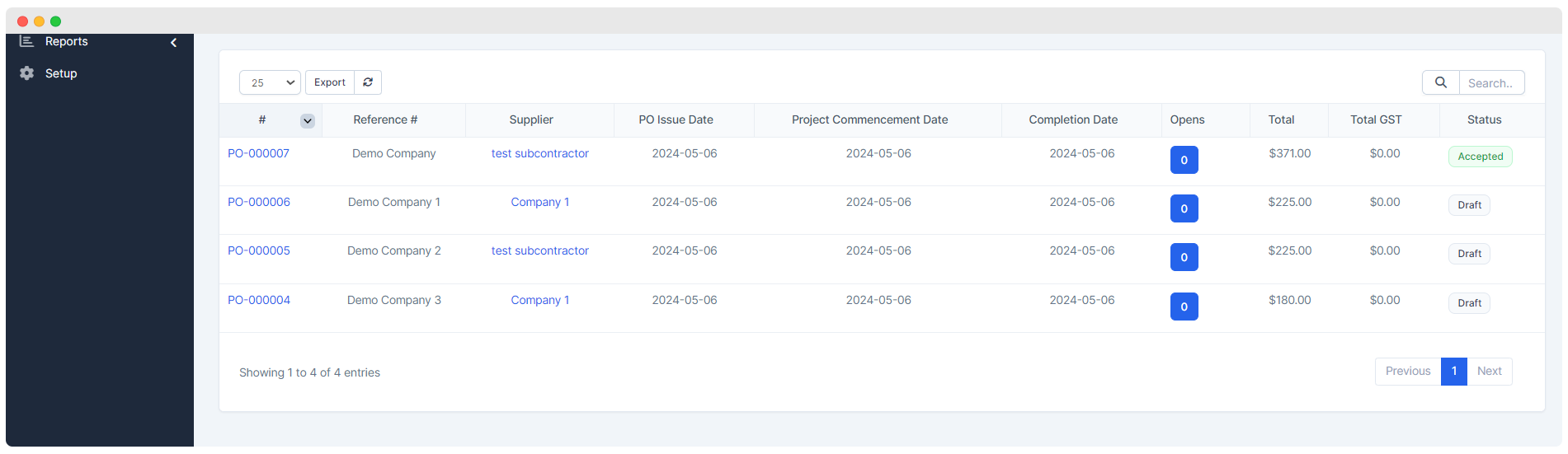
3. Data Table
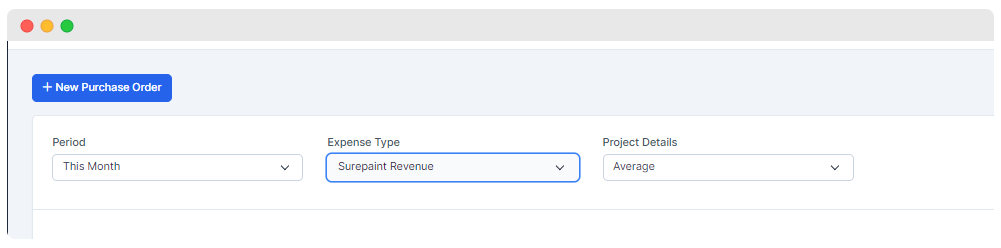
1. Filters
These section consists of three filters. Changes in these filters can affect the display of
Charts&Data Table
- Period Filter
- Expense Type Filter -> Has two types
Contractor RevenueandSurepaint Revenue.- Project Details Filter -> The chart will be classify on the basis of
Average,Count,Total.
2. Charts
This part will display the charts for purchase order on the basis of suppliers according to value selected in above filters.
3. Data Table
- Table will display all the details about purchase order for all entered Purchase order.
Purchase Order Preview
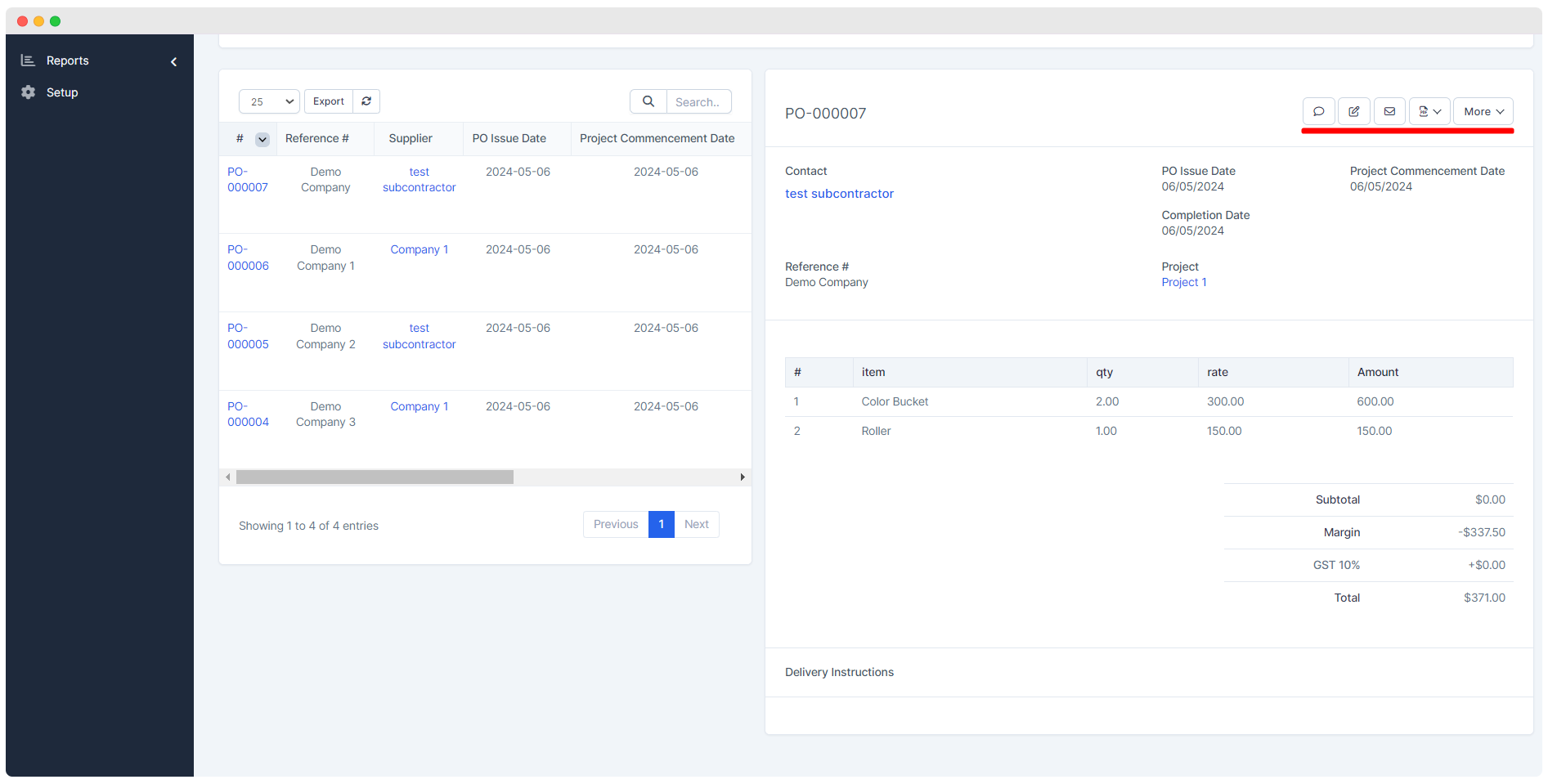
By clicking on the Purchase Order user can see Purchase Preview.
SMS Sending
Edit Purchase Order details
Email Sending
PDF Creation
More - Web View, Status Change
Web View Section
Accept and Decline Purchase Order
Click on Accept Button to accept Purchase Order.
If user wants to Decline the Purchase Order they have to click on the Decline Button and have to select the reason.
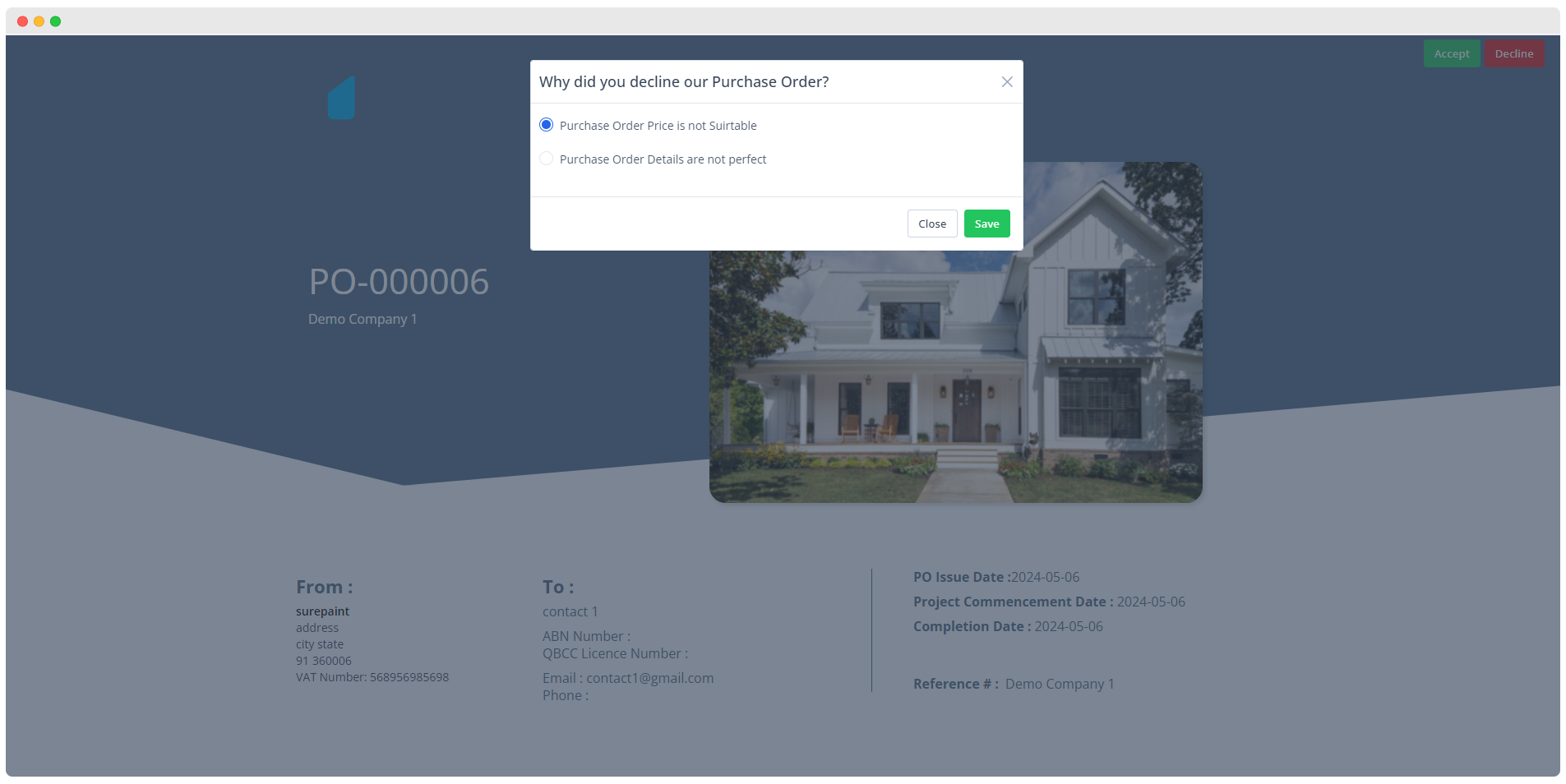
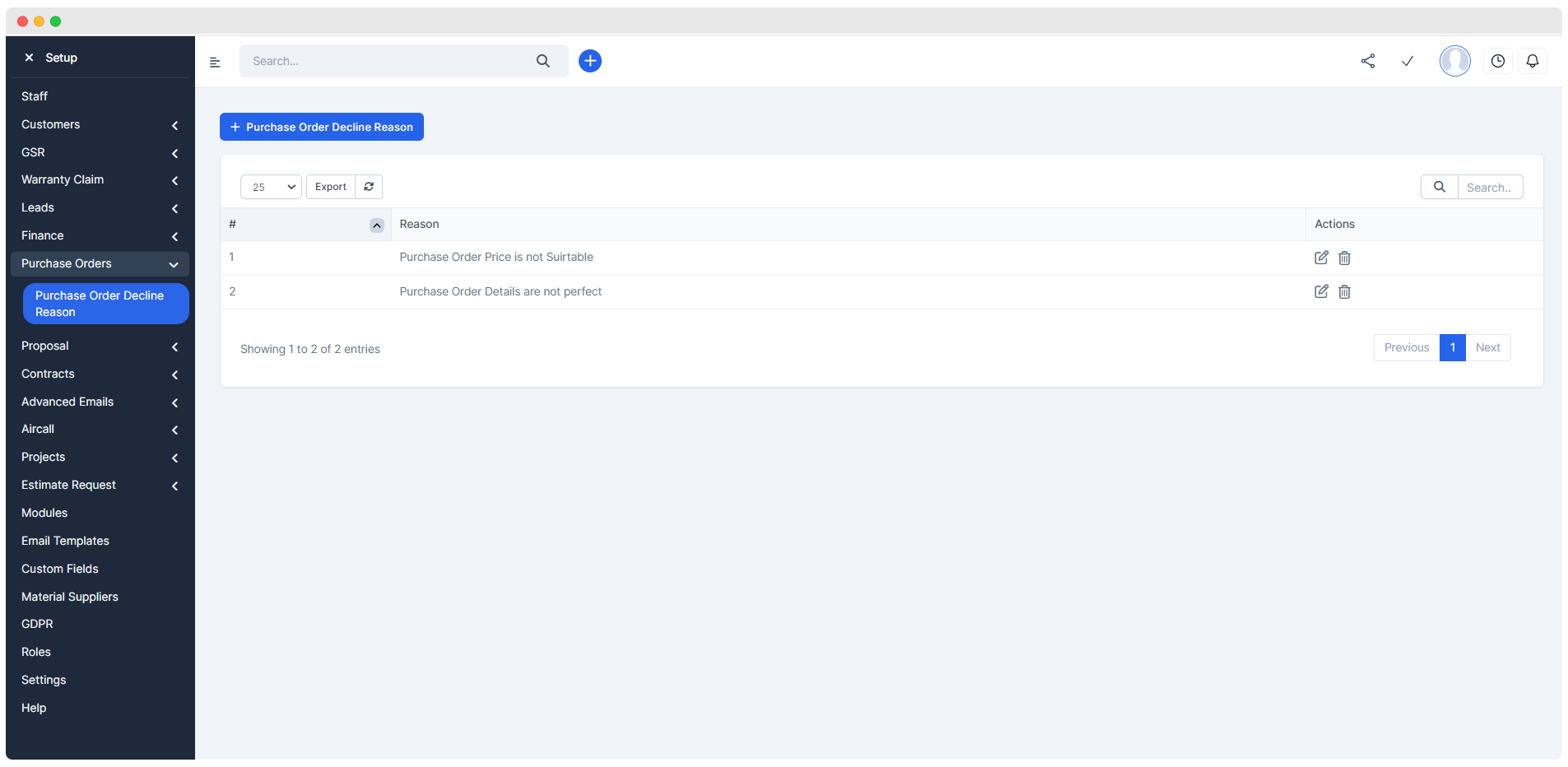
- Use can add Purchase order declining reason from
Setup > Purchase Order > Purchase Order Decline Reason