Module Installation
By following the bellow mentioned steps you can easily install any module.
Follow below mentioned steps
Setup > Module
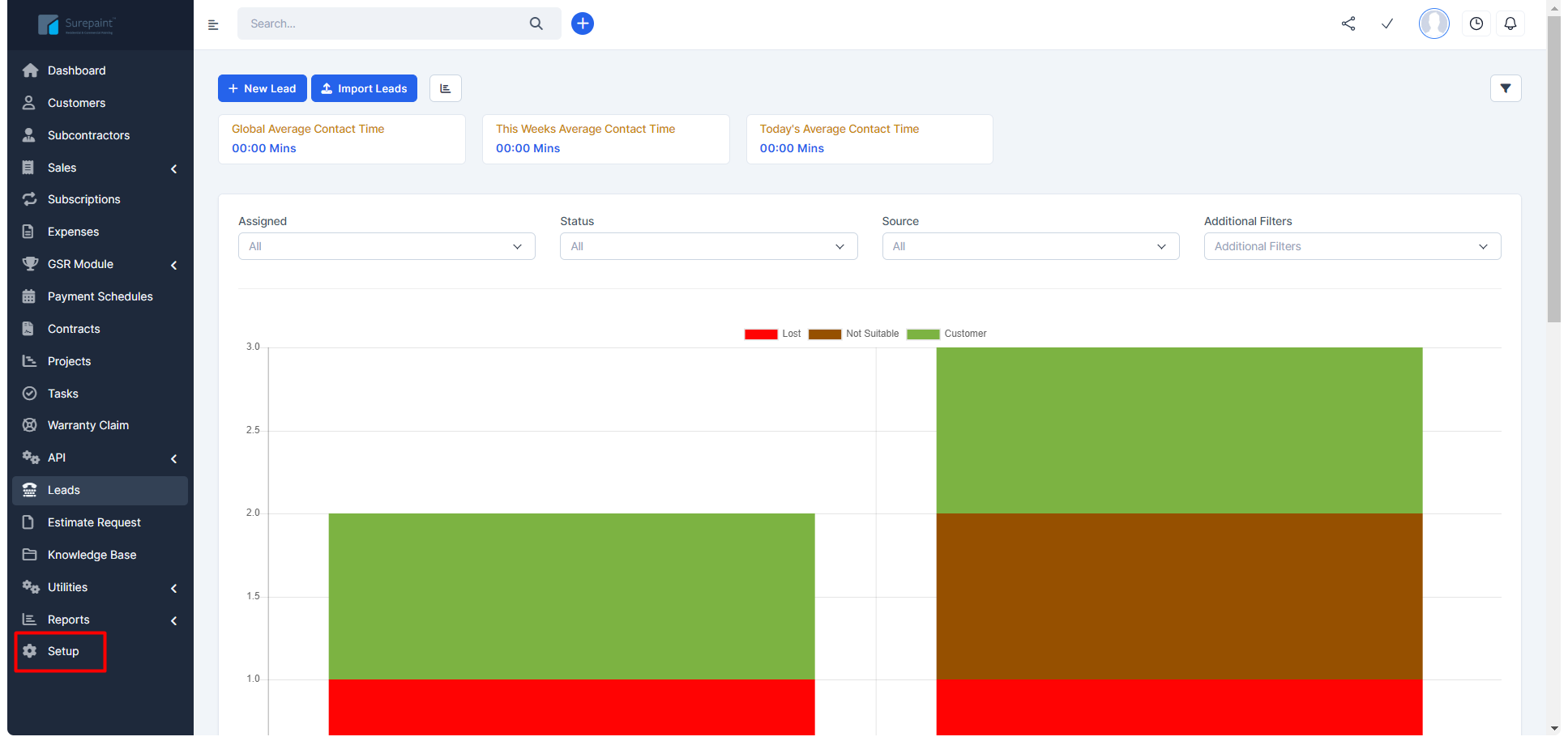
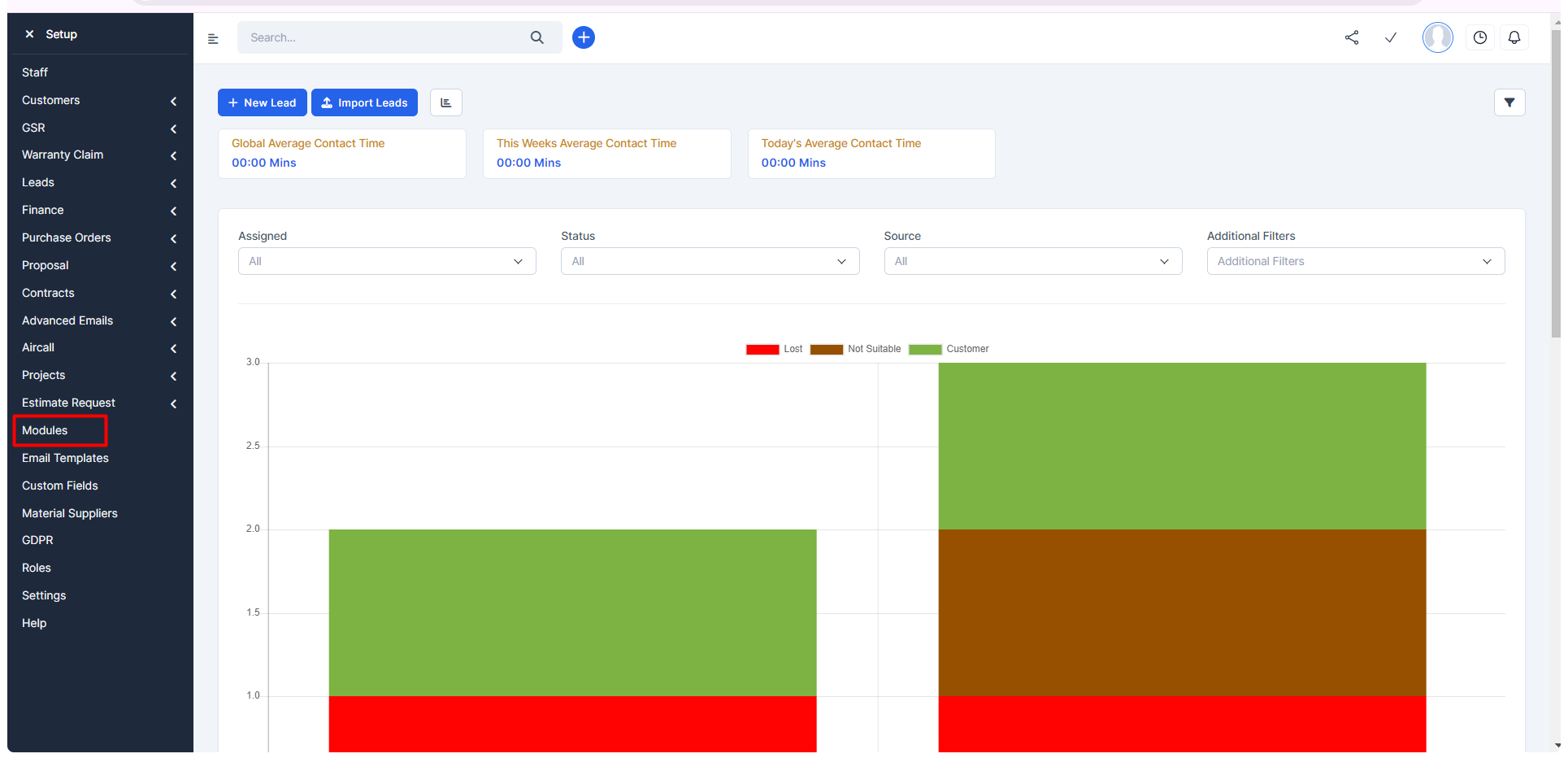
- By clicking on Modules all the modules will be displayed of perfex CRM.
- If you want to install any module you have to click on Choose File option displayed on the top and after selection you have to click on the install button.
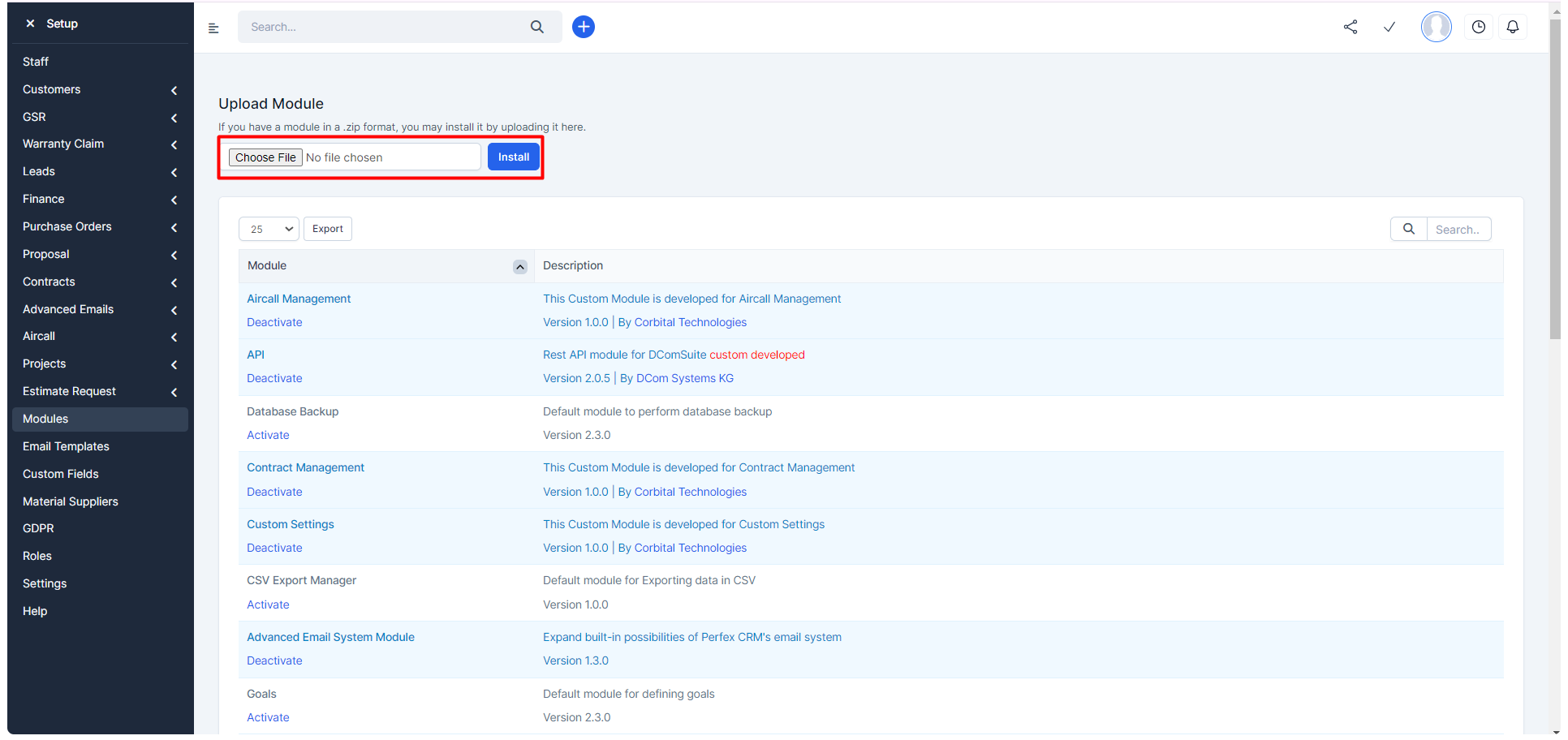
- After clicking on the install button your selected Zip file module will be displayed in module list.
- But by default it will be deactivate.
- to use that module and it's features you have to activate it.
Lead Module
Introduction
Introducing a feature that lets manager easily oversee and manages the section of lead of their company with all the lead details. This feature allows manager to sort their leads by the status type.
Customization
- Contact Time
- Leads Summary
- Chart
- Filter for chart and data table
- Data table
- Master data features
Contact Time
If there is any communication with the lead via call it's timing will be displayed here. It is divided into three timings.
- Global Average Contact Time.
- This week Average Contact Time.
- Today's Average Contact Time.
Leads Summary
In this feature managers can see status of their leads followed by Total leads, Lost, Not Suitable, Customer. You ca also see Reasons of Lost & Not Suitable status.
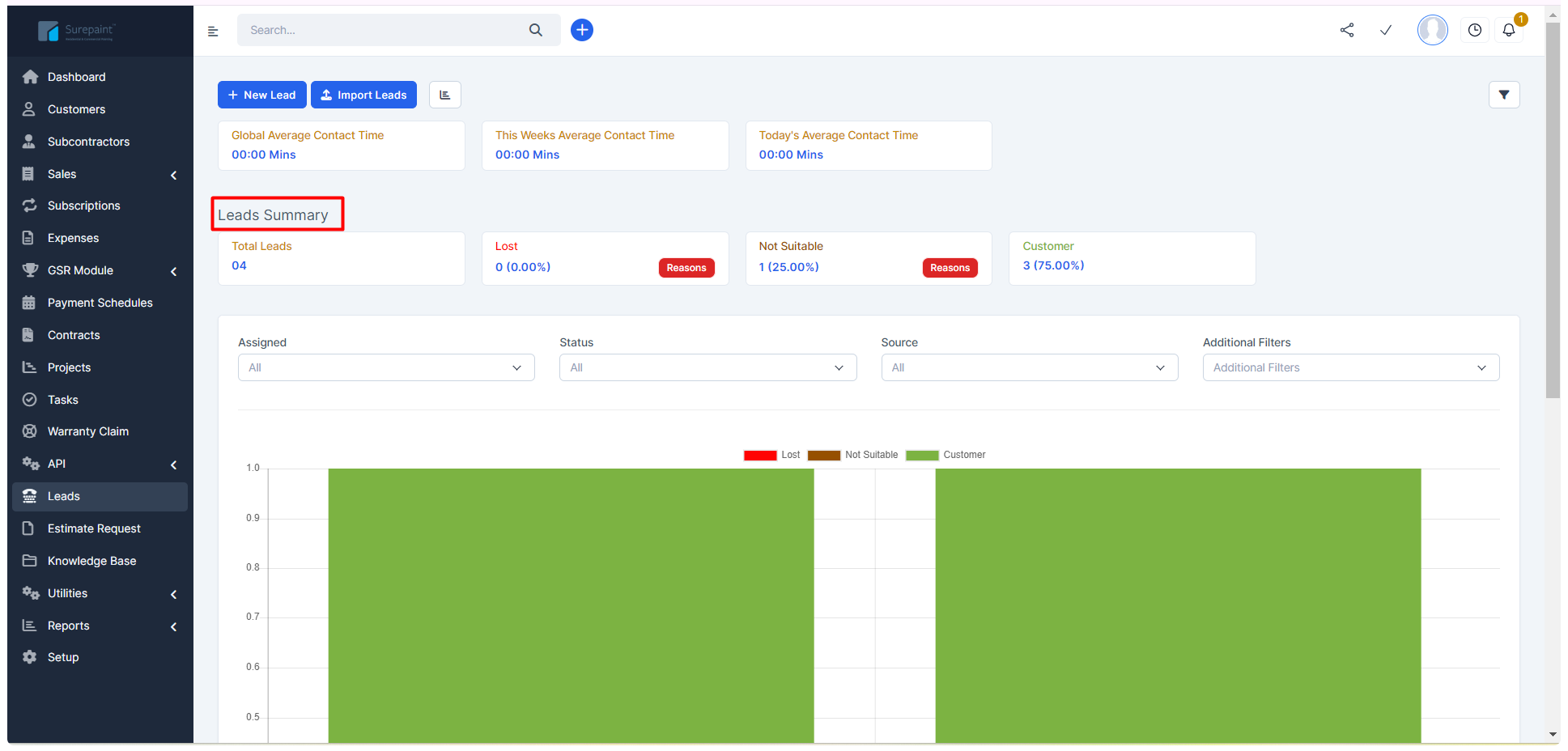
Chart
It is the feature with which you can graphically sort your leads by the status followed by Lost, Not Suitable, Customer.
- You can also see your chart by using the the filter which given upside of the chart.
Filter for chart and data-table
With the use of this filter you can easily sort you chart and data table by entering the values into all the fields or any individual field.
Fields
- Assigned
- Status
- Source
- Additional Filters
Data Table
Deleted columns from default CRM data-table
- Value
- Tag
Customized columns
- Next Follow-up Date
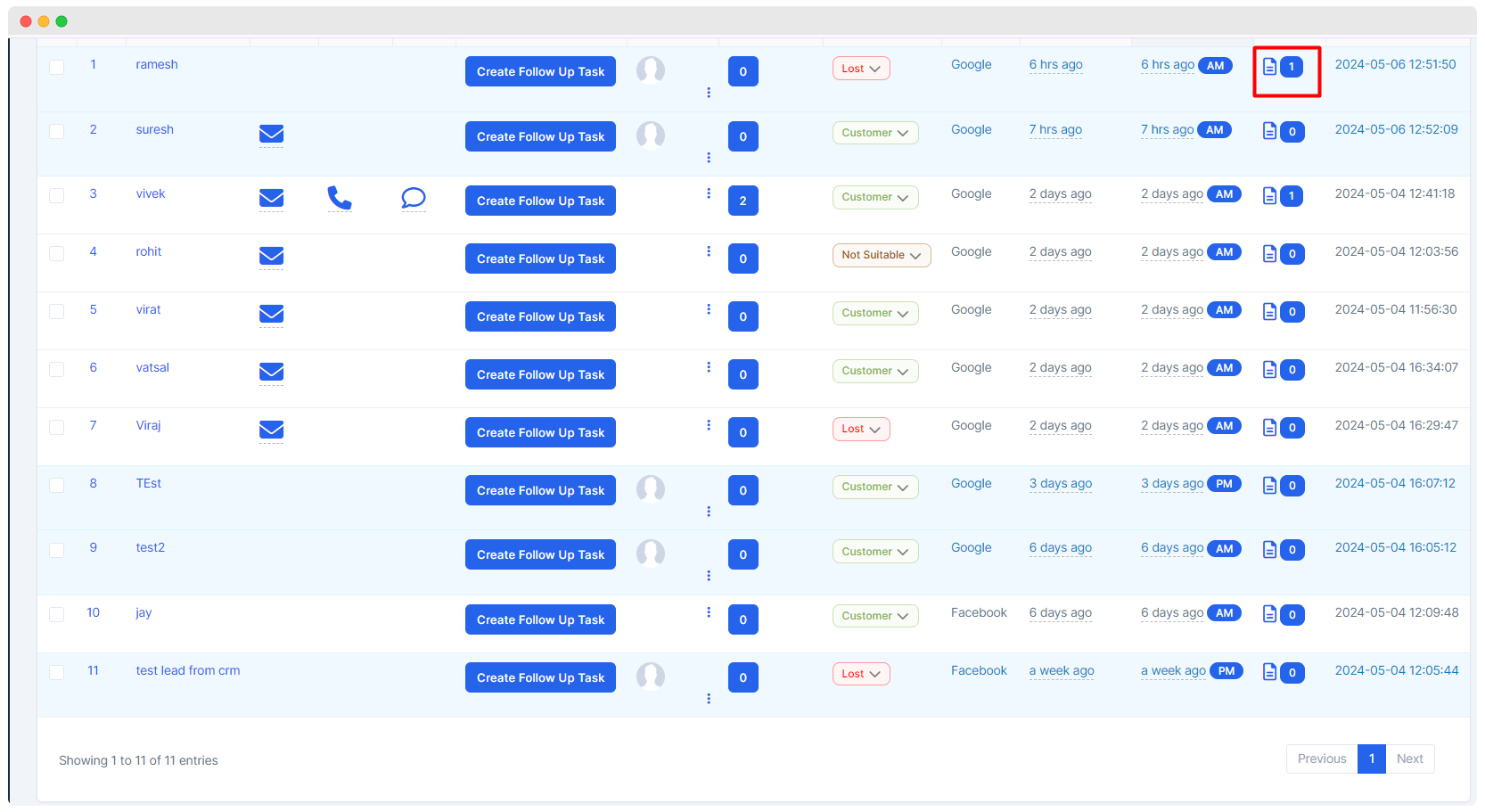
- Notes
- Update At
- Bulk Email Sending
Next Follow-up date
It is the feature of data-table with which you can set or assign the task for your staff-member for one particular lead to get the follow-up details.
Notes
With the help of this feature managers or admin can set some specific and important note for their staff member who is handling that particular lead. This note will be shown by clicking on the icon of note. The number of note manager has given to the staff member it will displayed with the icon.
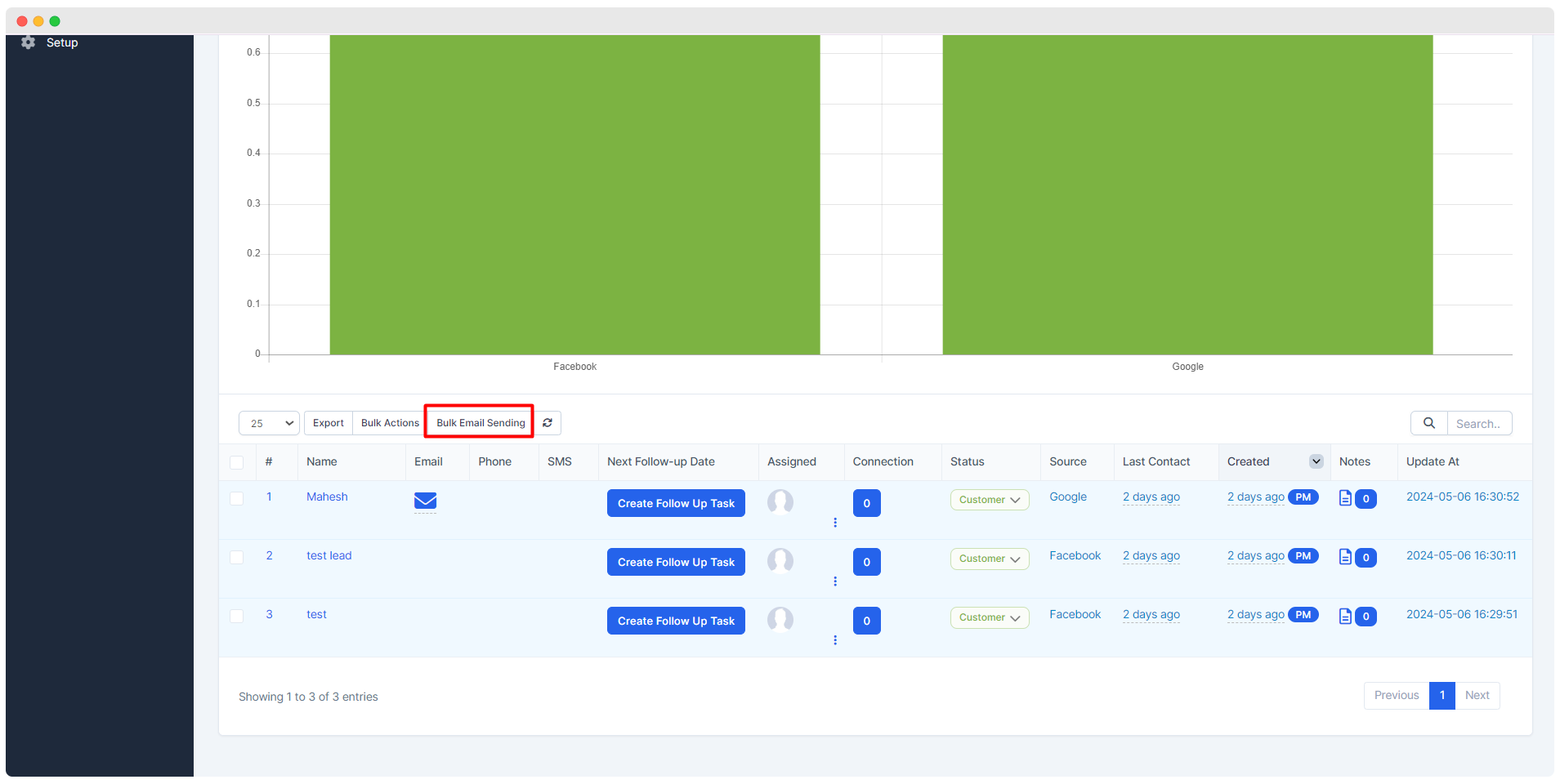
Bulk Email Sending
Manager can send bulk emails to one or more leads.
Master data features
- Email Template
- SMS Template
- Status Change Reason
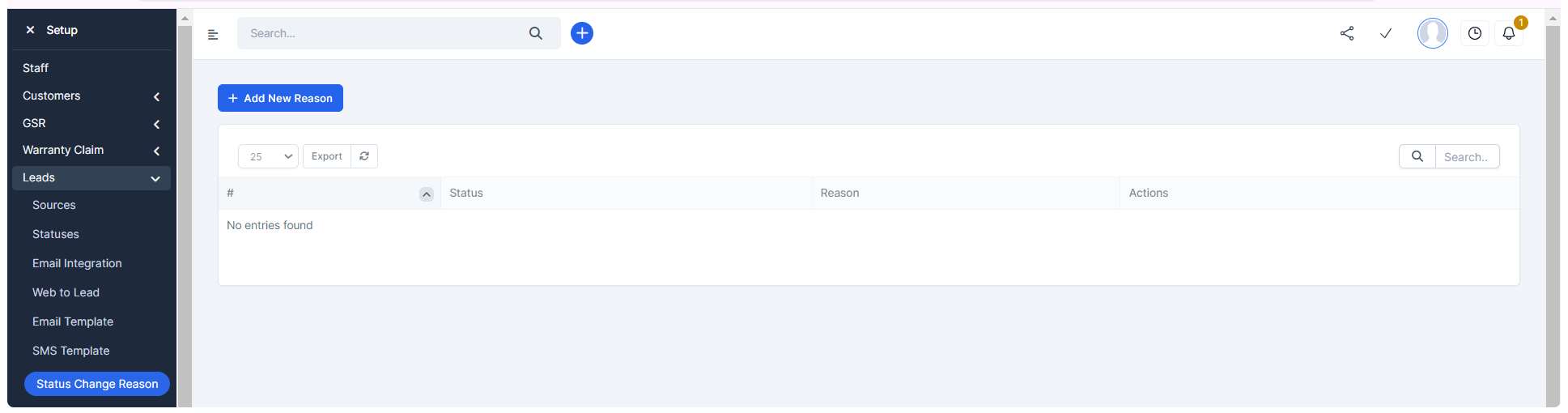
Follow below steps to show master data features.
Setup > Leads
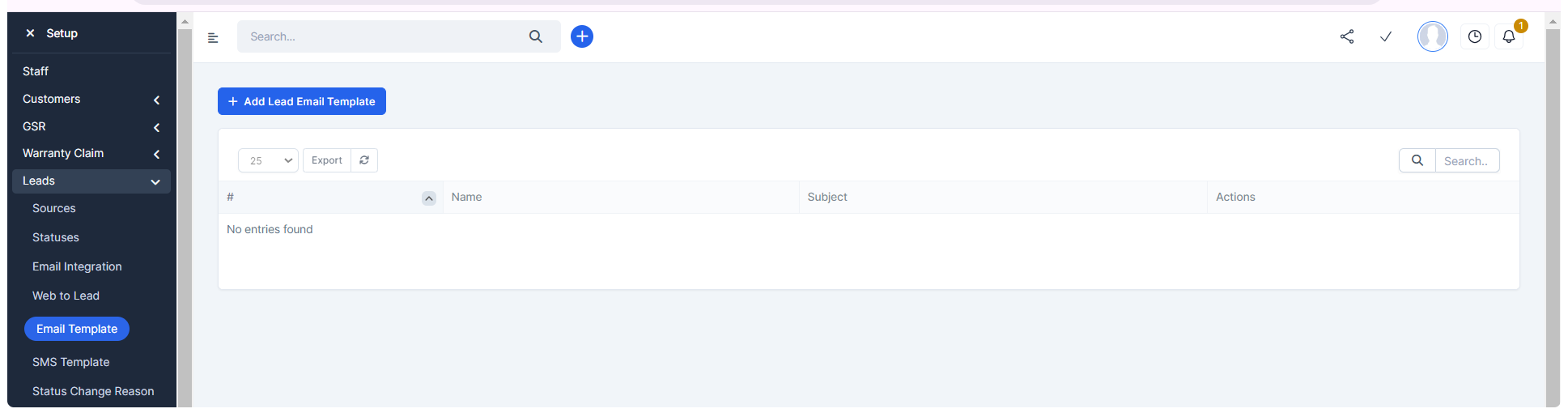
Email Template
- This feature is use to set Email Template.
- This template will use while manager is sending mails through the email icon which is displayed into the table into the column of email.
- By creating the email template it will provide you the ready template while sending the email to the lead.
- After creating email template you just have to select the template name for the lead it's description will be displayed automatically while sending the mail.
Setup > Leads > Email Template
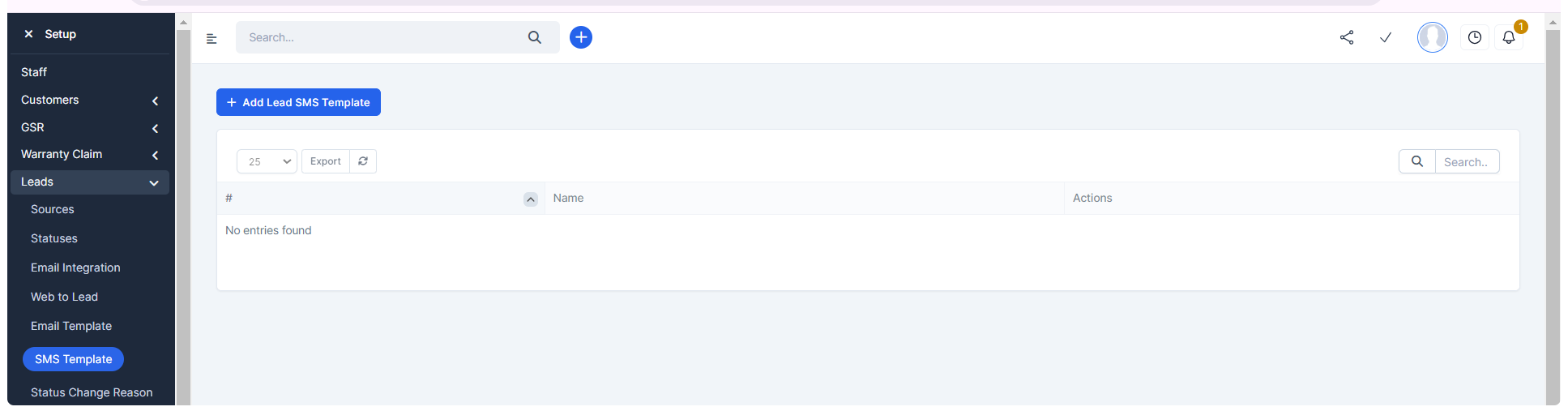
SMS Template
- This feature is use to set SMS Template.
- This template will use while manager is sending SMS through the SMS icon which is displayed into the table into the column of SMS.
- By creating the SMS template it will provide you the ready template while sending the SMS to the lead.
- After creating SMS template you just have to select the template name for the lead it's description will be displayed automatically while sending the SMS.
Setup > Leads > SMS Template
Status Change Reason
This feature is use to set reasons for status changing. It will work when one will change the status into the data table. At the time of status changing in the data table it will give you the drop down list for changing the status. When you will select one changing status the list of the reason will display. That list of reason you can add or edit from Status changing reason tool.
Setup > Leads > Status Change Reason