How to Install Module
Navigate to " Setup > Module " section on the dashboard.
After you are navigated to Module page, click on the " Choose File " option to upload the zip file under the upload section .
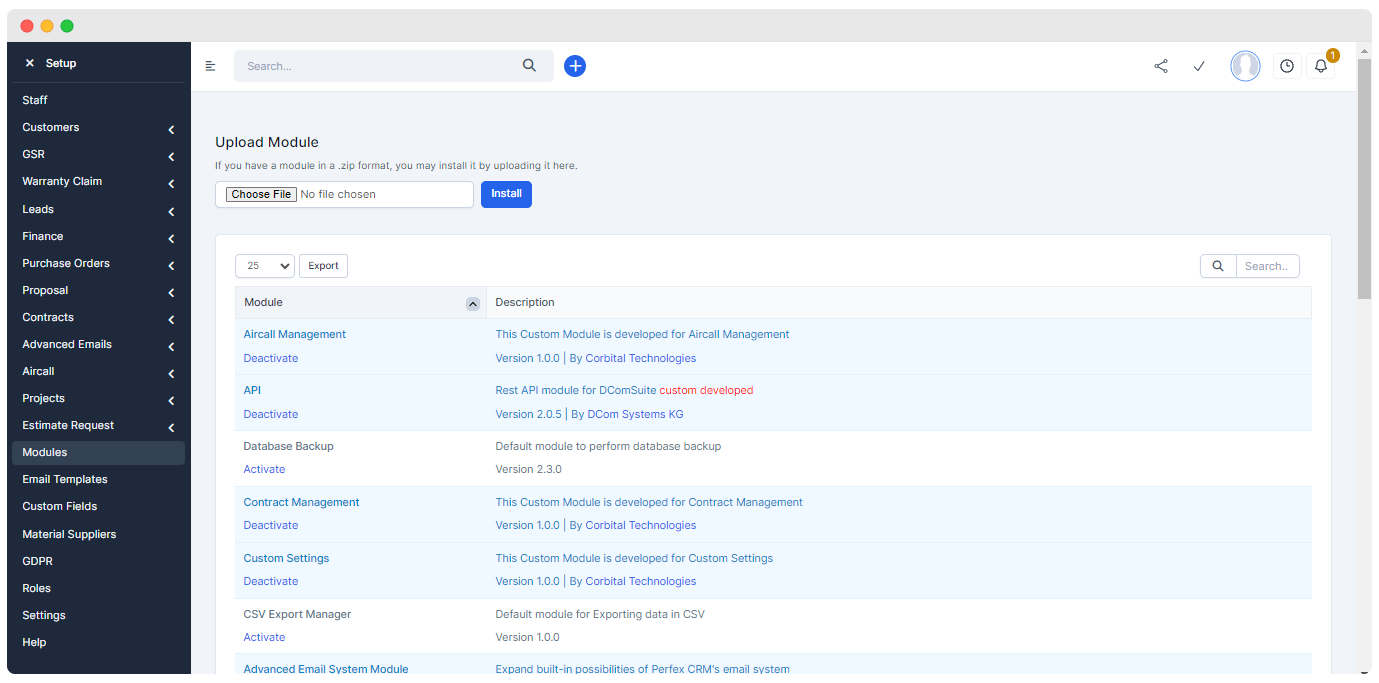
- Select a zip file and click on the Install button to install it in the CRM .
- Once installed search its name and Activate it by click on the Activate option under the file name as it is deactivate by default . The zip file is the activated and you are able to use its features .
Contract Module
Introduction
Built-in feature of Perfex CRM but specific changed are made on user requirement .
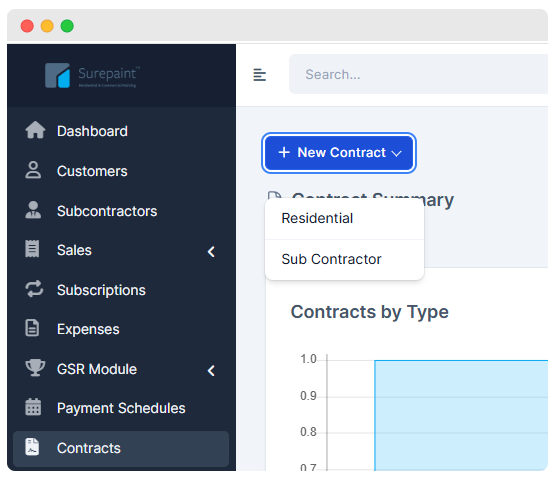
- Click on the "Contract Section " to view the contract page on the dashboard .
Changes Made
Create contract for :
- Subcontractor
Renamed :
- Customer > Residential
Modifications in Customer Form
- Fields added in Customer Form :
- Assigned
- Payment Schedule
- GST
- Start date as Commencement date
- End dater as Completion date
- Proposal Number
- Address
- Representative
- Representative Mobile
- Public policy
- Workover Policy
- Special Conditions
- Resident Address.
- " Save & Send " button inserted to save the form and send E-mail to the Residential .
Modifications in Subcontractor Form
- The Subcontractor form is same as Residential form but some fields are added .
- The following fields are added in the Subcontractor form :
- Sub Contractor
- Assigned
- Payment Schedules
- GST
- Contract Period (in Months)
- Licence No
- ABN No
- PUBLIC LIABILITY INSURANCE Company Name
- Policy No (PUBLIC LIABILITY INSURANCE)
- Current to (PUBLIC LIABILITY INSURANCE)
- WORKERS COMPENSATION INSURANCE Policy No
- Current to ( WORKERS COMPENSATION INSURANCE)
- PERSONAL SICKNESS AND ACCIDENT INSURANCE Company Name
- Policy No (PERSONAL SICKNESS AND ACCIDENT INSURANCE )
- Current to (PERSONAL SICKNESS AND ACCIDENT INSURANCE )
- " Save & Send " button inserted to save the form and send E-mail to the Subcontractor .
Contract Dashboard
- Can view the created contract at the bottom of the Contract Dashboard .

Modifications in Contract Overview Table :
- Type
- Total GST
- Tracking Info
- Status
Contract View
Various merge fields are added in the form view format .
- The payment_schedule merge field is included to list the payment related details in table form .