How to Install a Module in perfex CRM
- Click on in Perfex CRM dashboard.
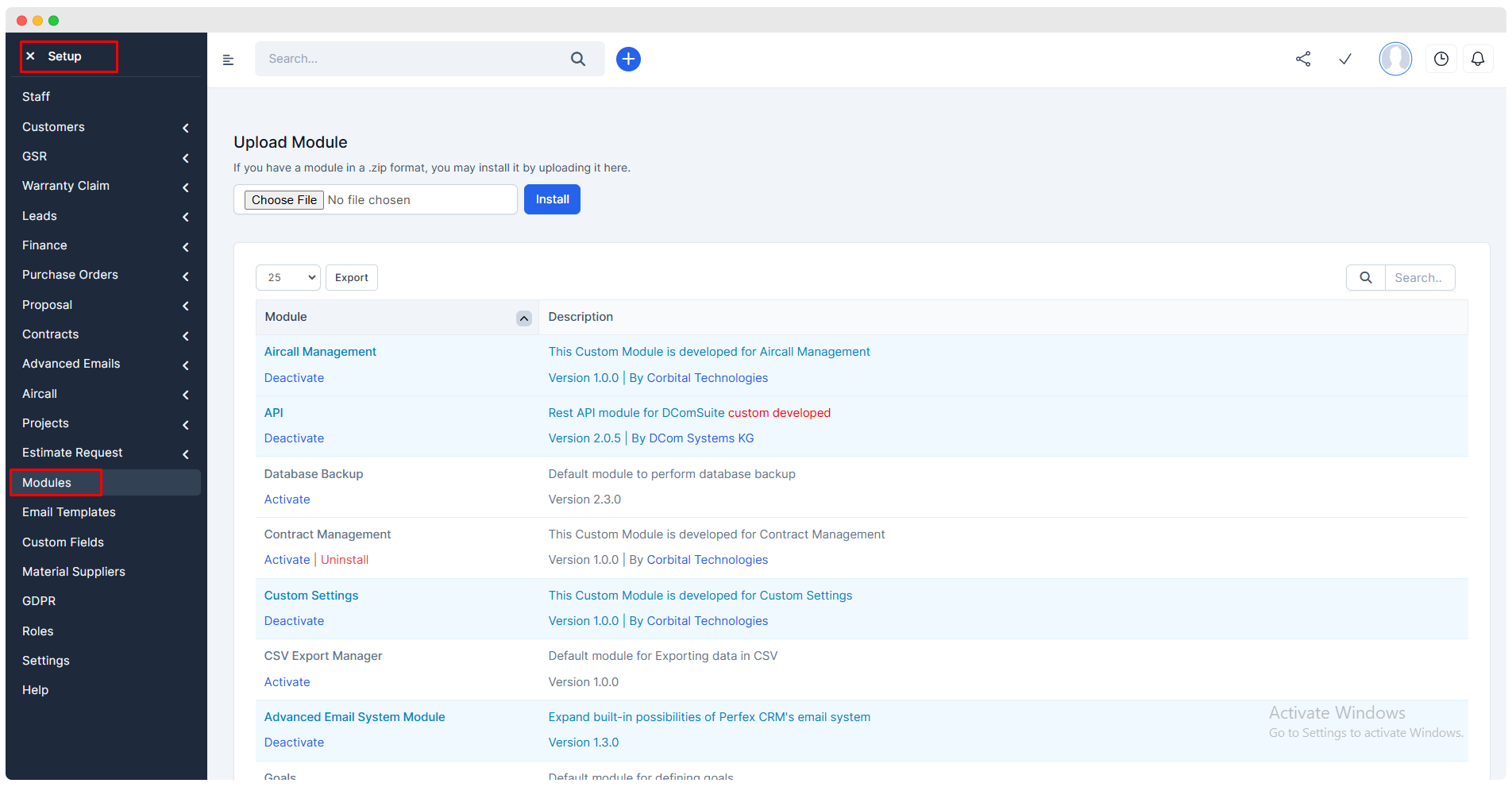
Click on
Choose Fileand select the zip file of the module toinstallBy default the module would be deactivated, activate it for using its features.
Proposal Module
Introduction
The Proposal Module is mainly used to send the quotation for your services to client.
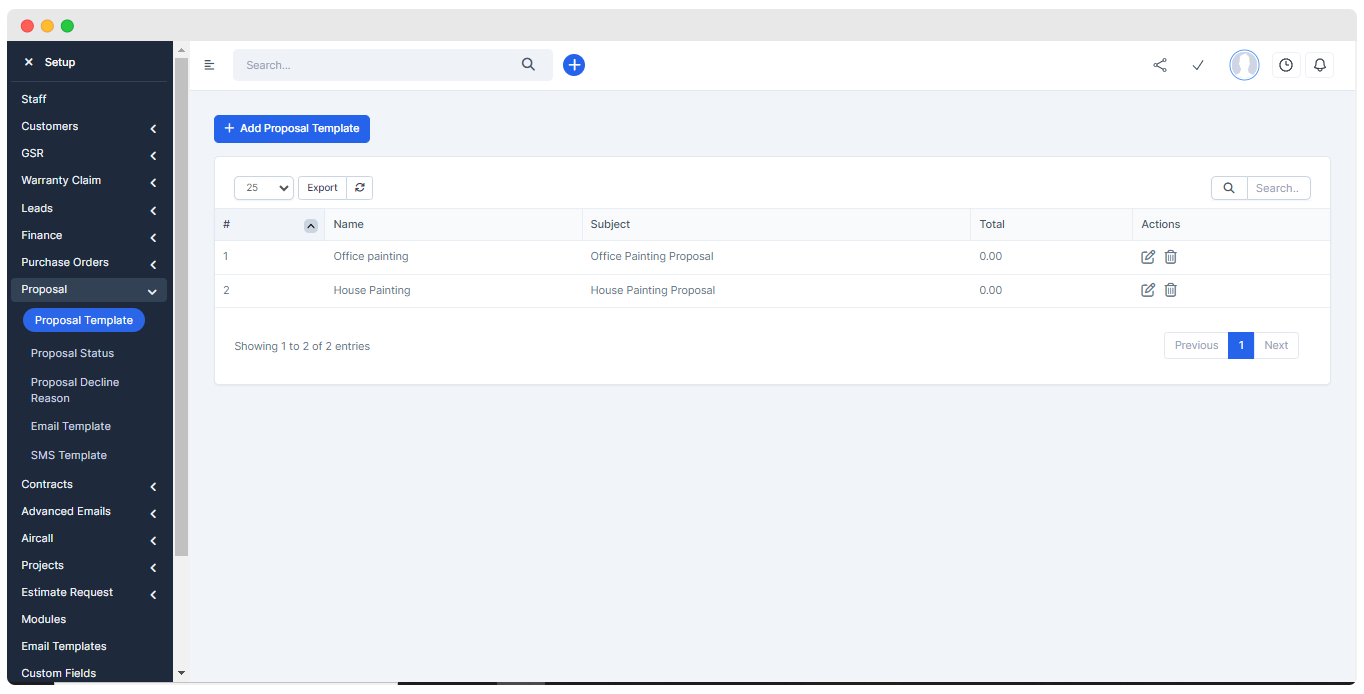
Sales > Proposals.User can use the pre defined proposal templates for the product or service's descriptions or can create a new proposal templates``` for same.
Setup > Proposals > Proposal templates.
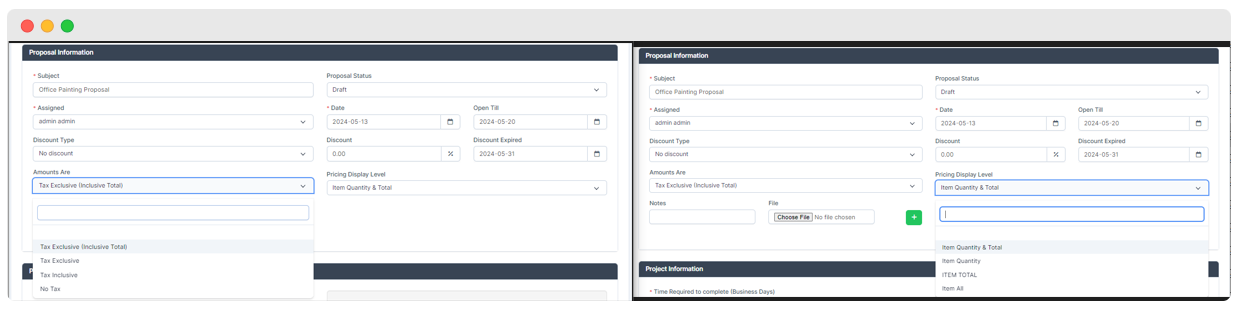
Added fields of Proposal Form
- Amounts Are
Tax Exclusive(Inclusive Total),Tax Exclusive,Tax Inclusive,No Tax.
- Notes , File
- Discount Expired
- Pricing Display Level
Item Quantity & Total,Item Quantity,Item Total,Item All.
- Time Required to Complete (Business Days)
- Material Suppliers
- Add Inclusion
- Add Exclusion
- Featured Image
The inserted image will open in
Web ViewinTop headsection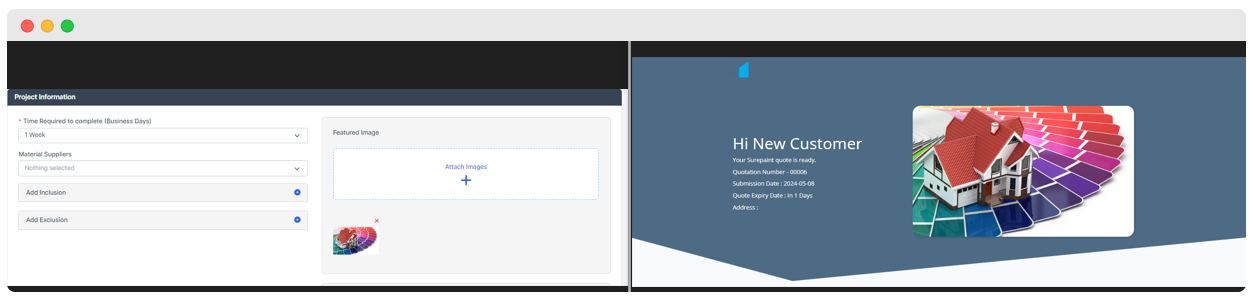
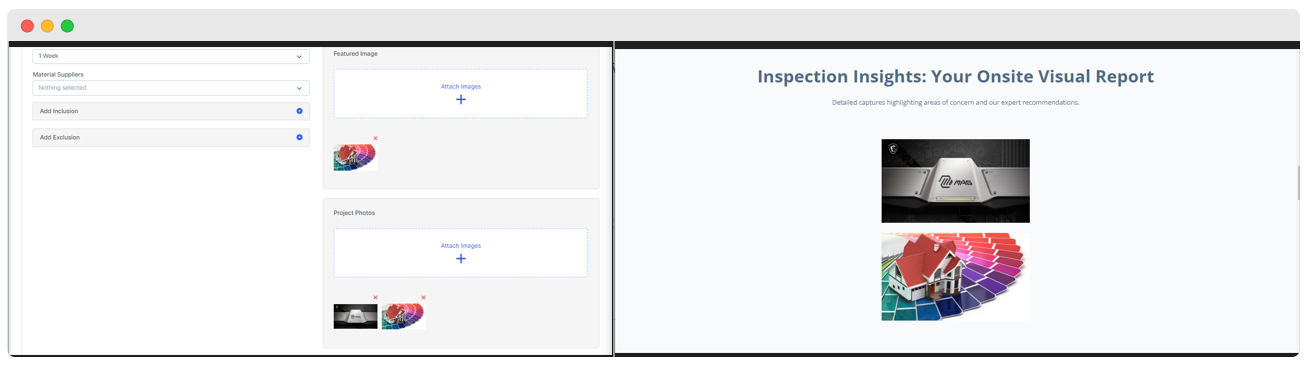
- Project Photos
- The inserted image will open in
Web ViewinInspection Insight: Your Onsite Visual Reportsection.
- The inserted image will open in
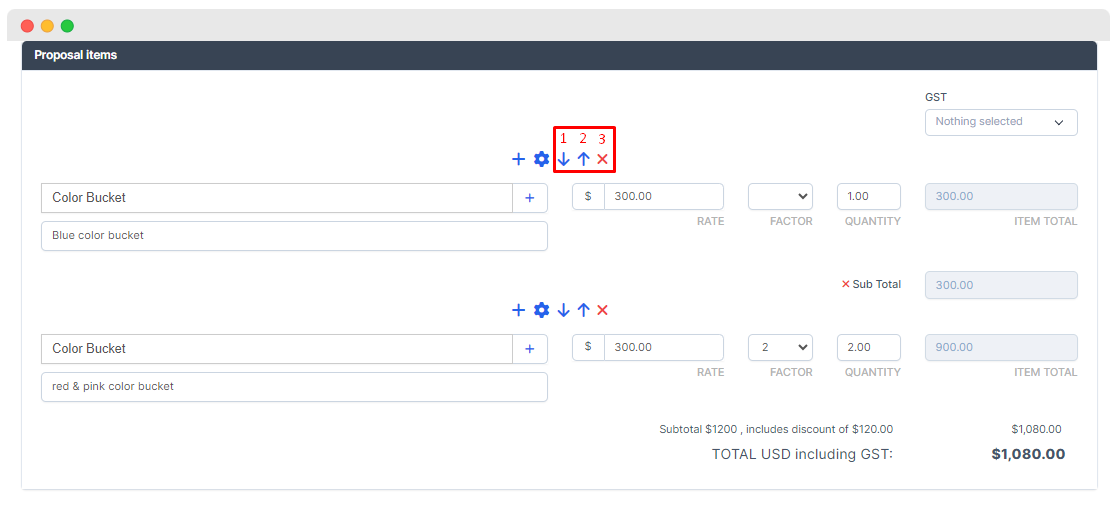
Proposal Item Section
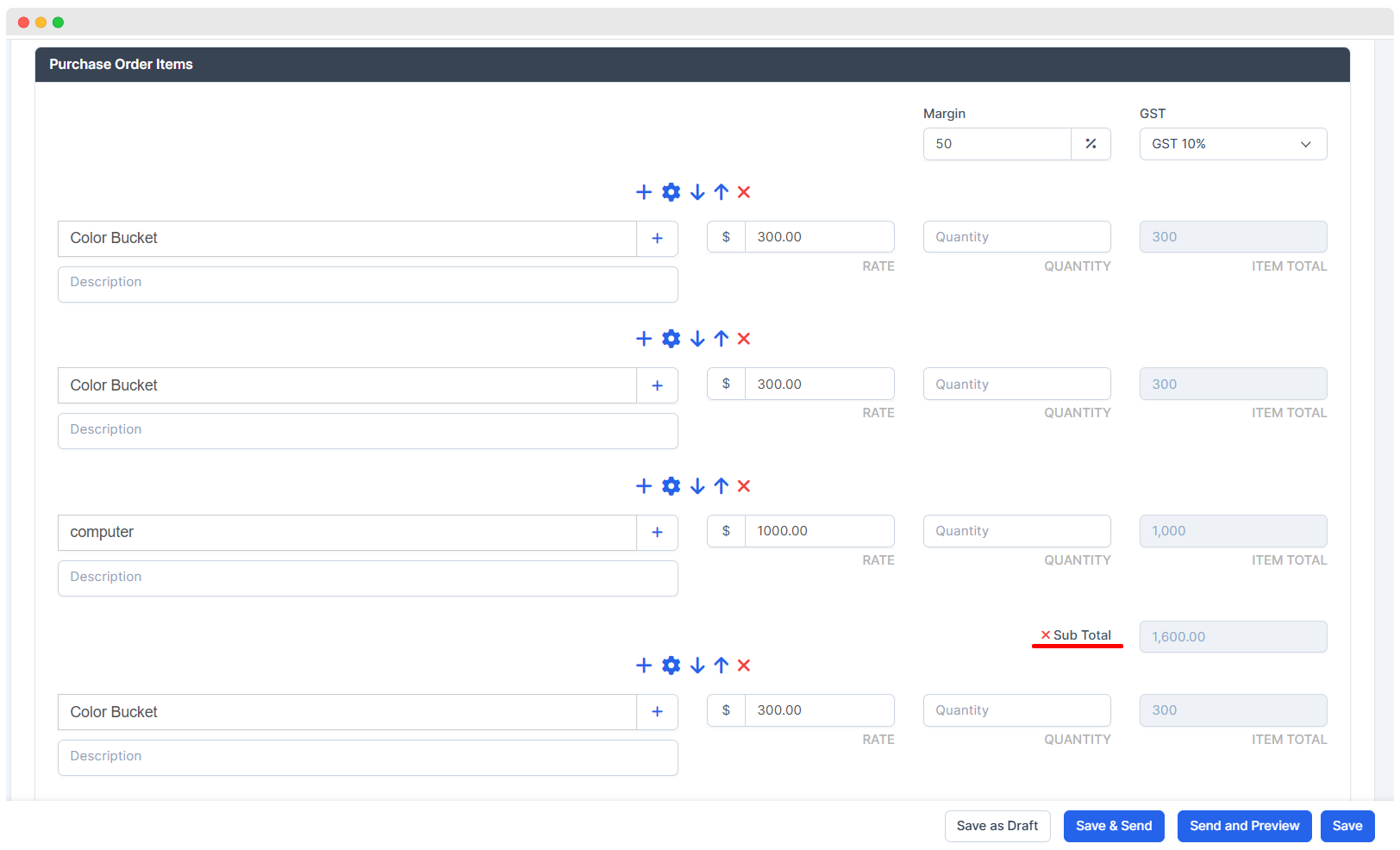
Add Item
Add Item - User will get text box to add item.
Add Subtotal - It will display the total amount of all the above added items.
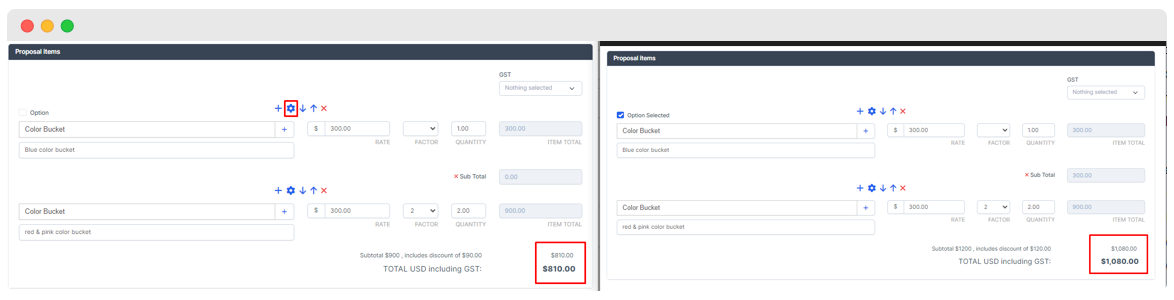
Optional Item
To provide choice to Customer and it's price is added to grand total.
Displays the check box button to select the optional item.
- Moves item in
Upwarddirection. - Moves item in
Downwarddirection. - User can removes item.
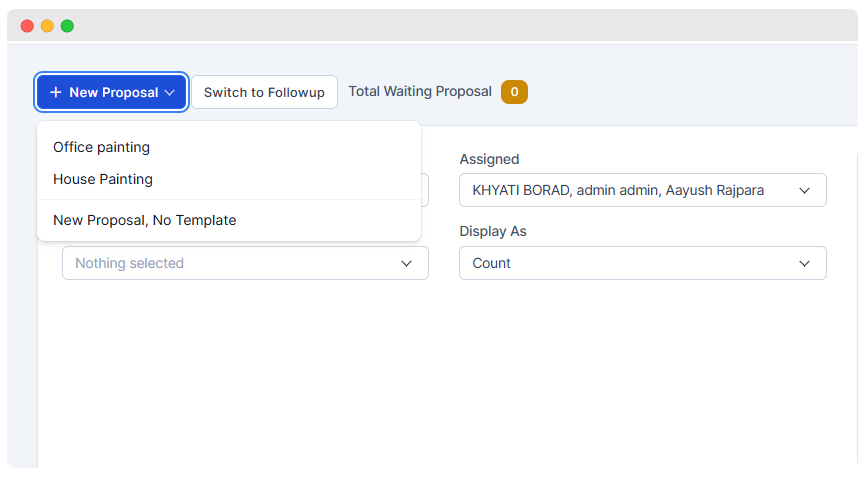
Proposal Landing Page
We can create a new proposal in two ways :
Using
Pre-made templateUsing
No template
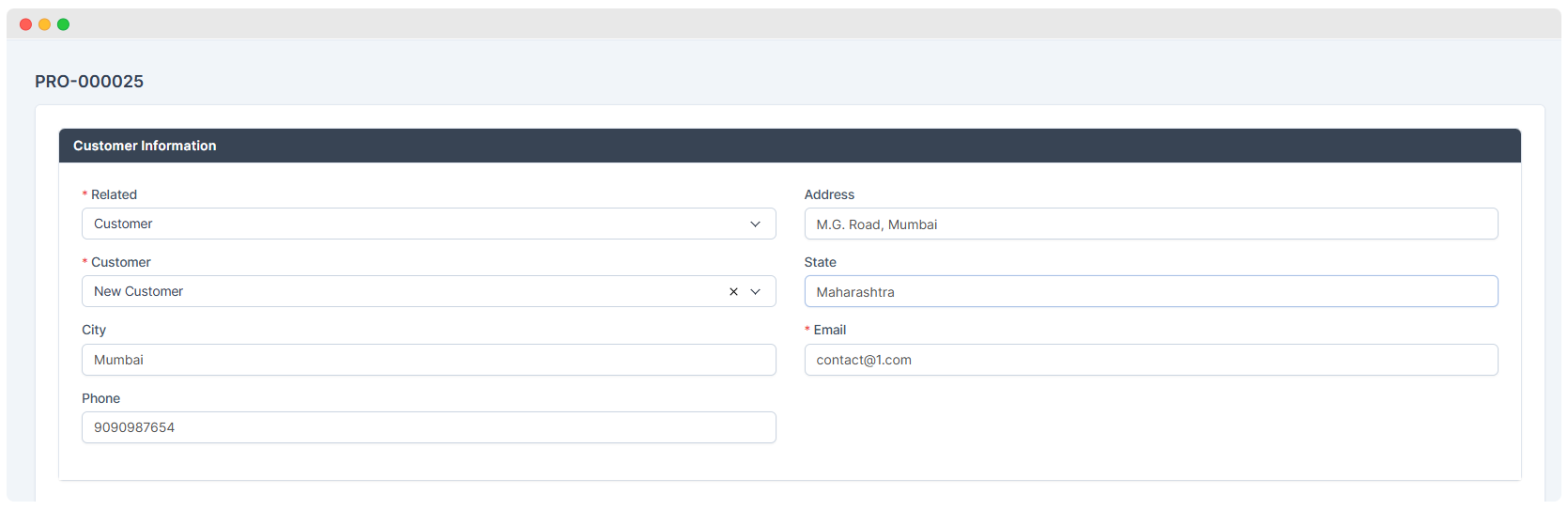
Proposal is created either for
CustomerorLeadwhich is selected from‘Related’filed in‘Customer Information'section.Fill out all the details of customer like name,city phone address etc. in
‘cusomer Information’section.
- While creating proposal in a pre-defined template, user can also edit its details as per the needs.
- After completing the proposal form, user gets 3 features :
Save as DraftSaveSend and Preview(proposal is directly sent to the customer or Lead and user gets to see its preview)
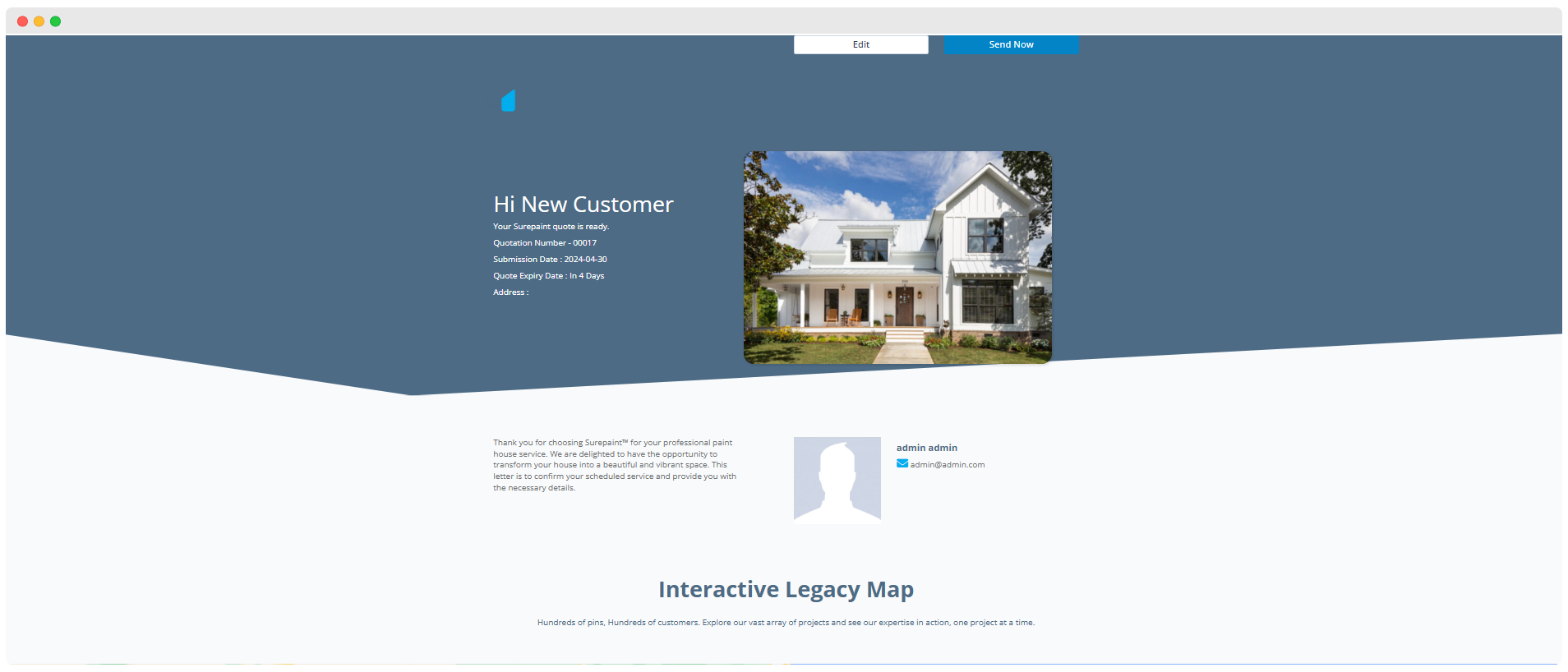
Web View of Proposal
- It has two features :
Edit(to edit the proposal)Send Now(Proposal is mailed to the customer)
- Web View has all the details of the proposal like customer details, feature image, project photos attached in attachment, name of assignee(s), project specific information, inclusions,exclusions and selected items.
- Optional items added in the proposal are also displayed in web view. It completely depends upon the customer whether to add or remove them.
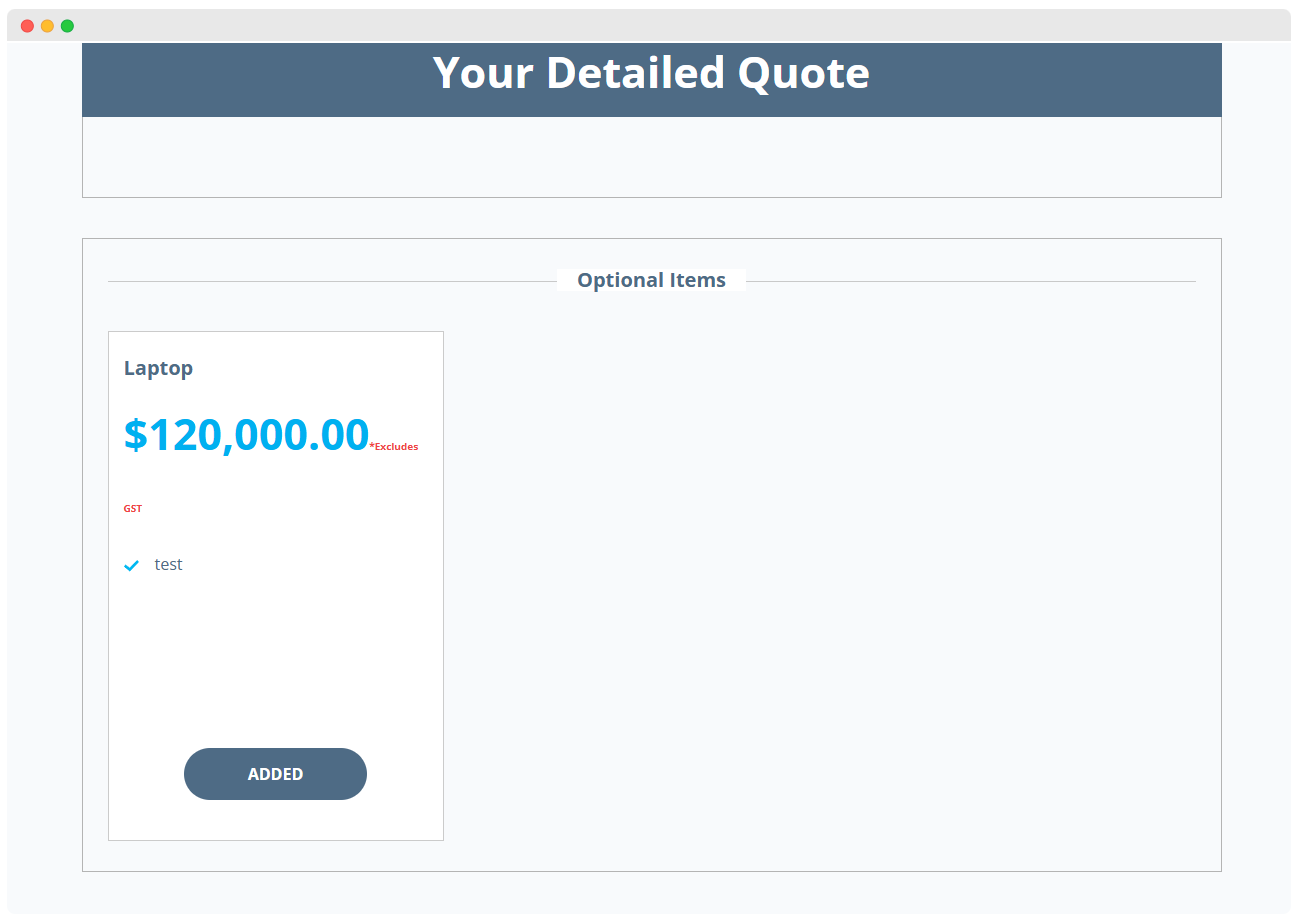
- At the end of web view there are 2 options :
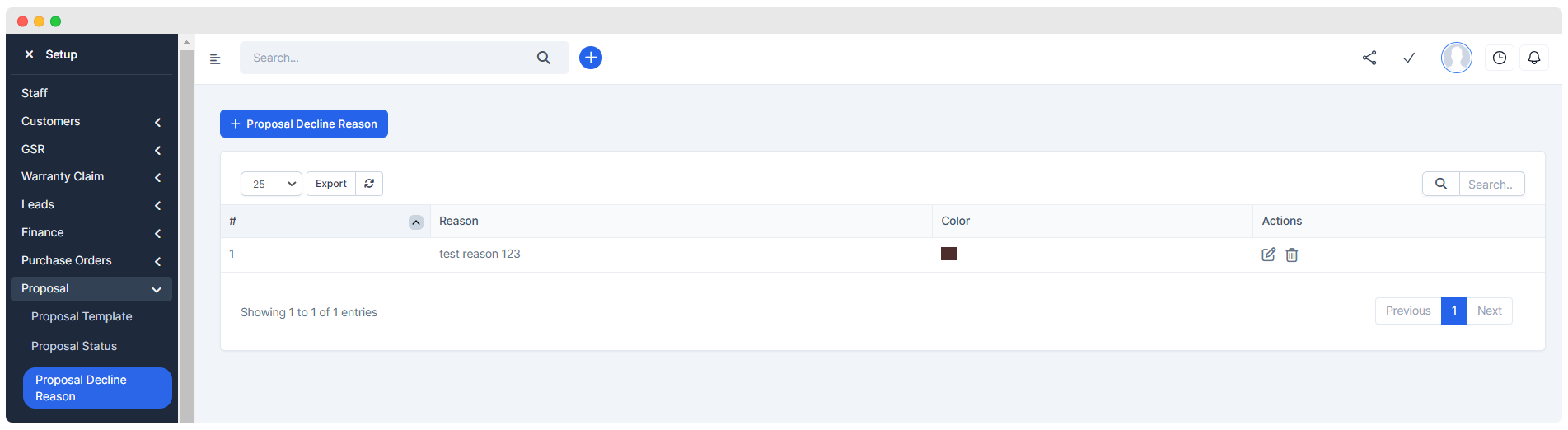
Accept:Customer has to fill his basic details in the form as he/she accepts the proposal.Decline:Customer has to select a reason as he/she declines the proposal.- User can add some pre-defined reasons for declining the proposal in
Setup > Proposal > Proposal Decline Reason. Out of these reasons customer can select any one or tick theotheroption if no reason matches.
- User can add some pre-defined reasons for declining the proposal in
Proposal Preview
- From the proposal data table, user can view a particular proposal.
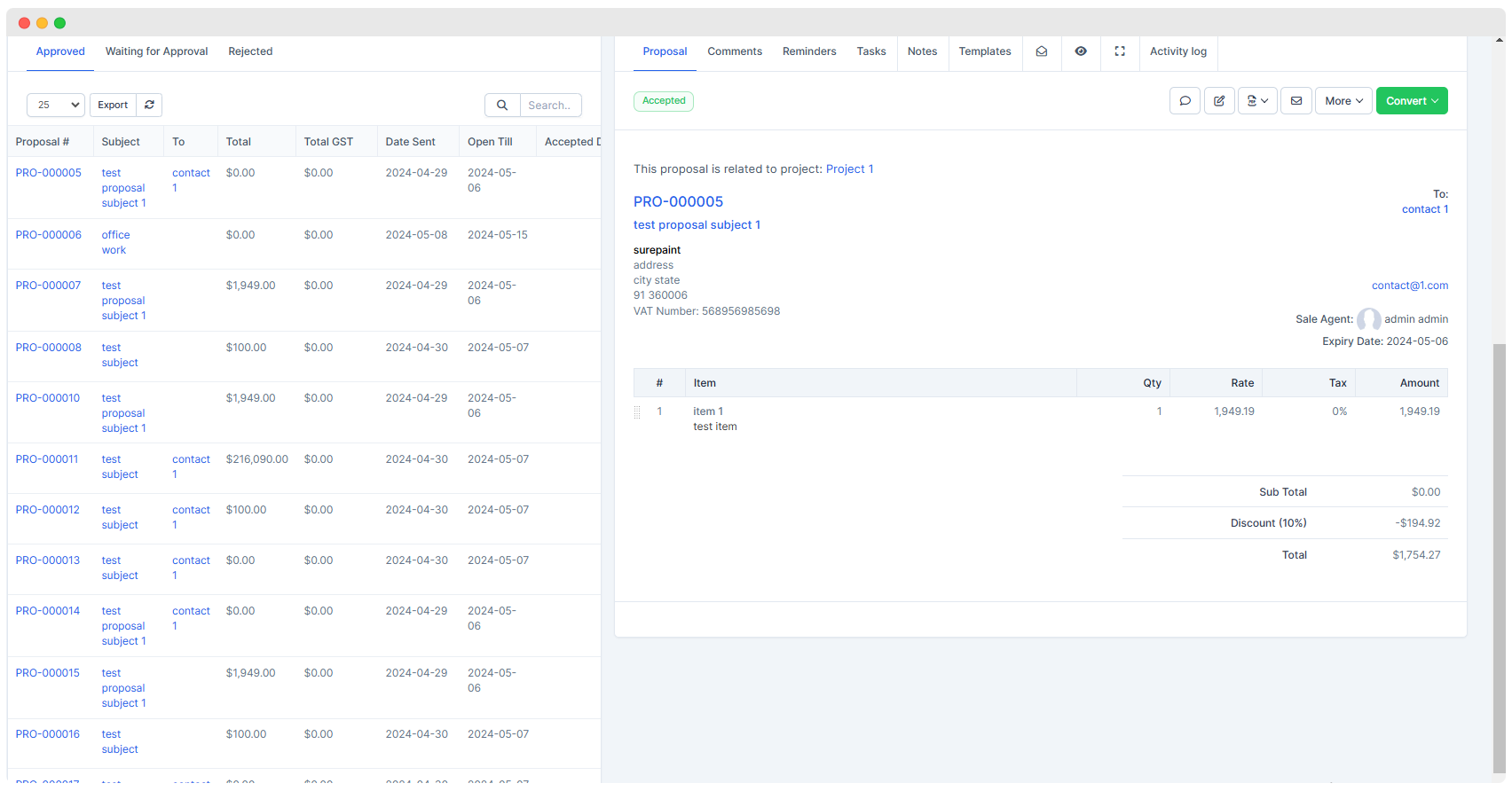
In the PDF view format of proposal, new added field values are displayed.
The proposal can be
sent to customerthroughmail.
Proposal Data Table
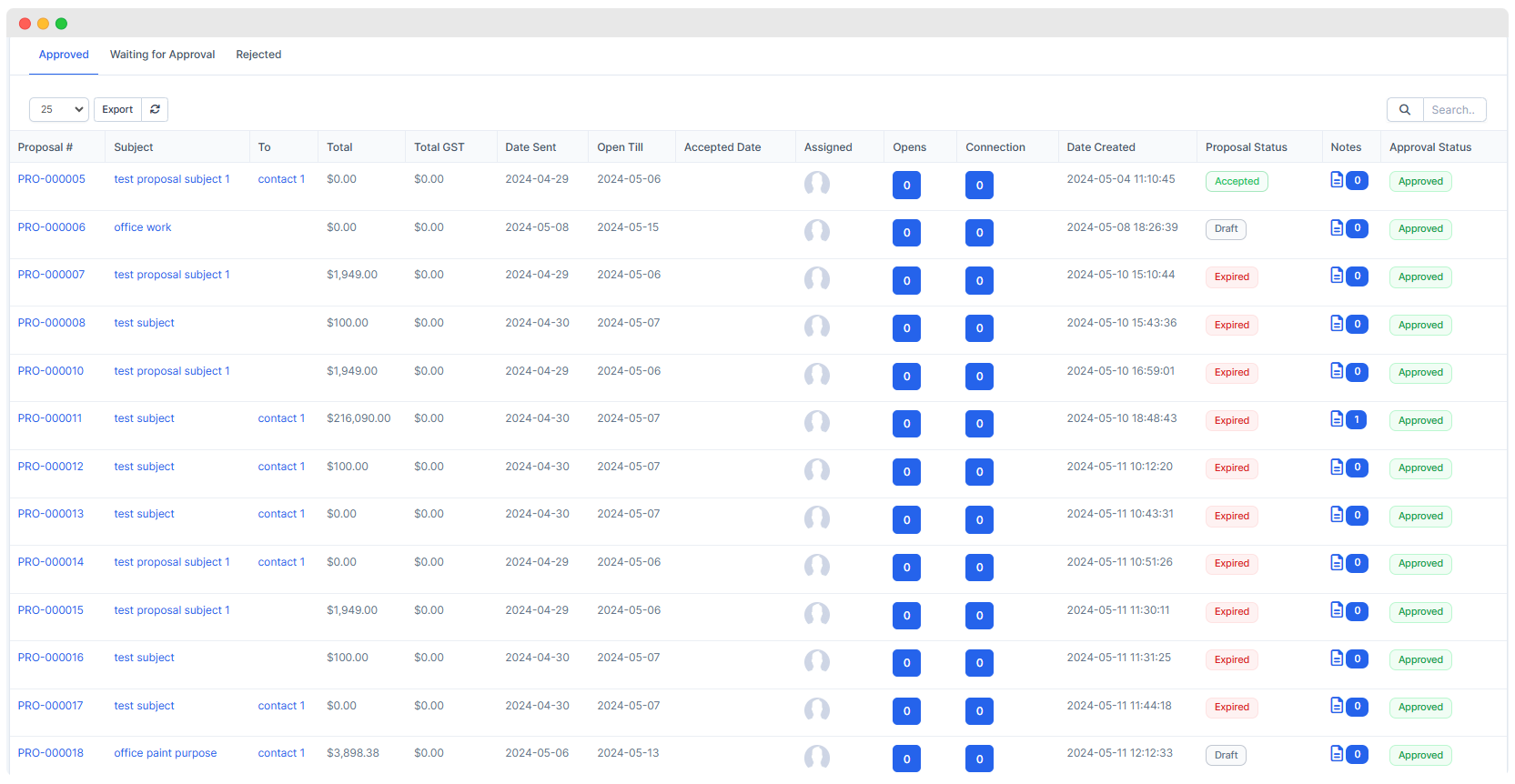
The modifications are made where the internal staff can view the proposal status .
The options provided are :
Approved:This field displays the proposals that are approved by the Superior Officer .Waiting for Approval: When the proposal is created beyond the maximum amount by the internal staff, the proposal is sent to Superior officer through mail to approve or reject it .Till the proposal is not approved or rejected by the officer , the proposal remains in Waiting for Approval status .Rejected: When the superior officer rejects the proposal , it is displayed in this field .
- When the
superior officerrejects or approvesthe proposal , themailfor the same is sent to therespective staff memberwho created the proposal .
Filters
PeriodProposal Type: Displays the list of proposal templates .- When any type is selected its
effectcan be seen inapproved fieldwhere proposals of the selected type are filtered and the same effect is seen in thepie chartabove .
- When any type is selected its
AssignedDisplay as: Its effect is seen in the chart displayed besides .Count: displays proposal countsTotal value: displays proposal total value in pie chartAverage Value: displays proposal average value in pie chart

Switch to Follow up
- There are following filters:
- Assigned
- Status(Proposal status)
- Period(Time Period)
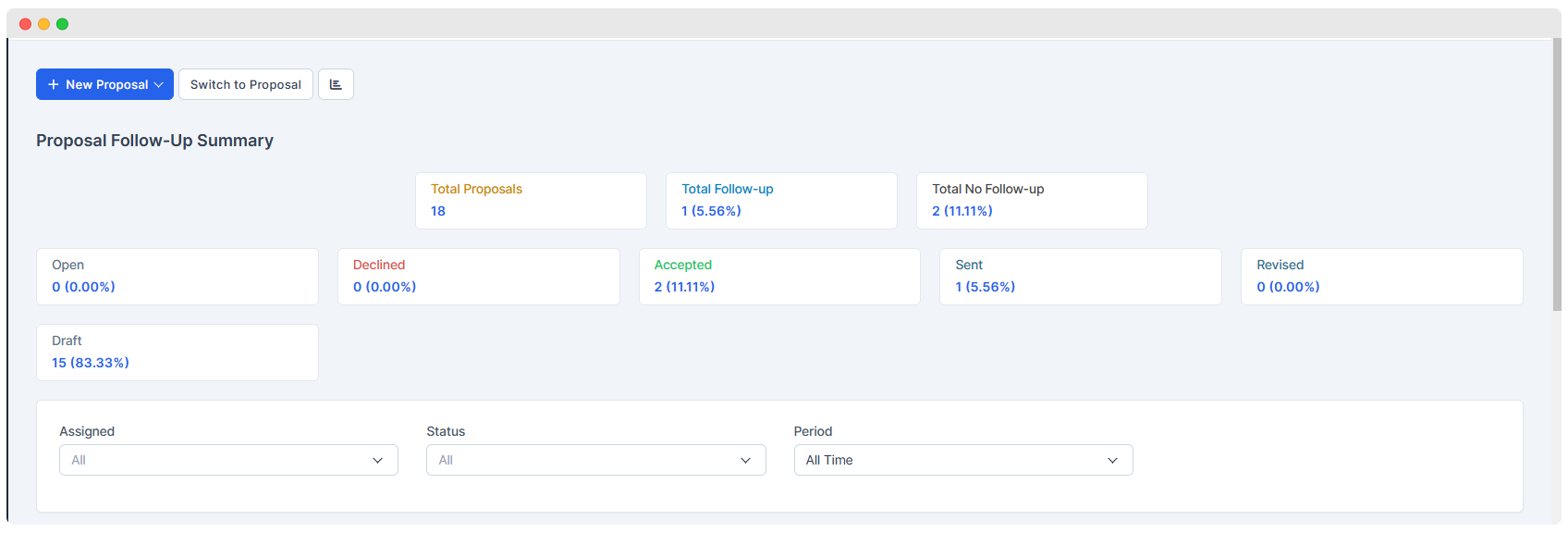
Data Table
Features
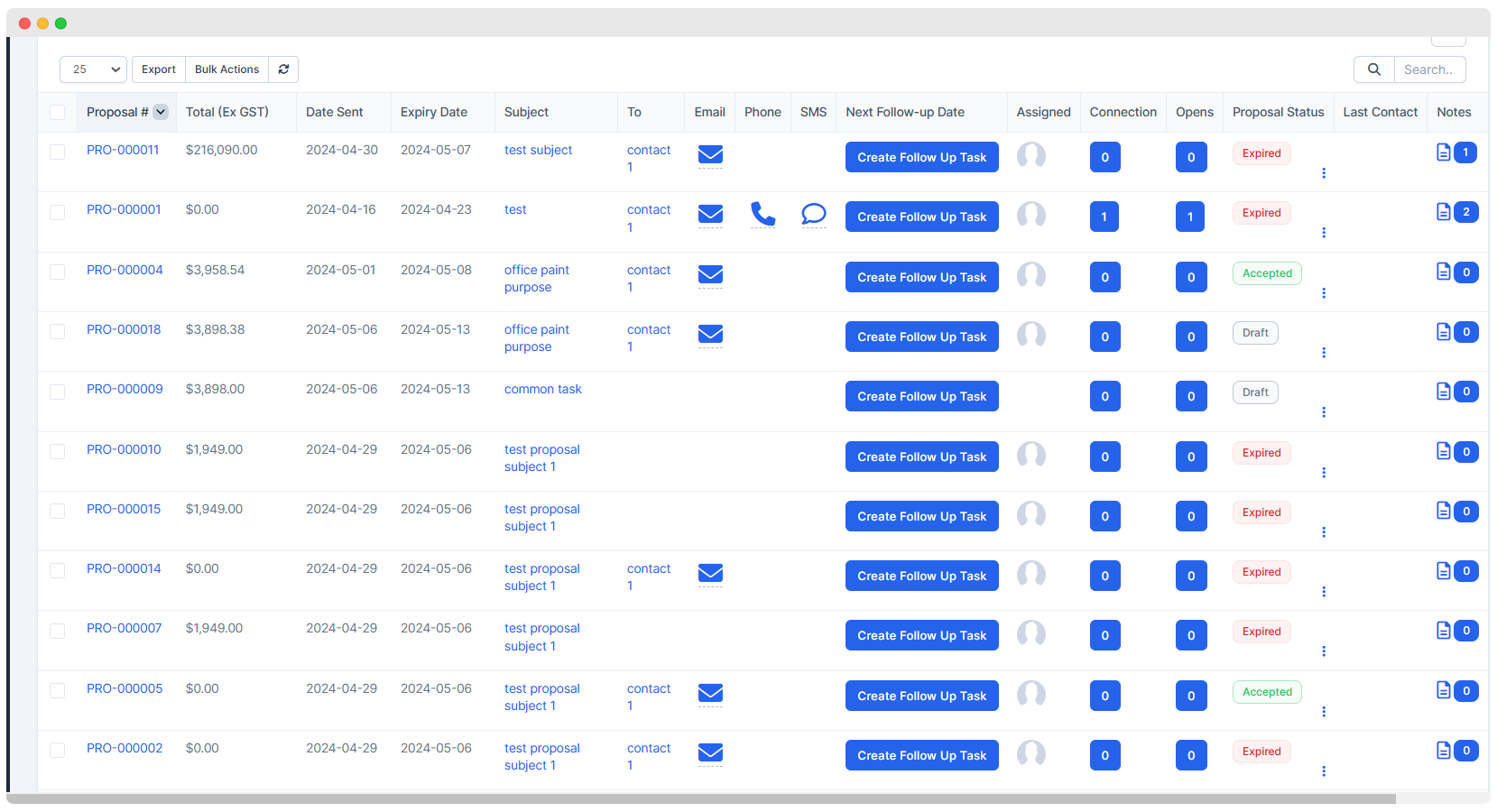
Follow-up :user can take follow-up about the proposal already sent to customers throughEmail,SMS, orPhone.
- While using Email or SMS feature user has to select a template which can be created from
Setup > Proposal > Email Templatefor Email andSetup > Proposal > SMS Templatefor SMS.
Create Follow Up task :Staff can create a follow-up task and assign it to any staff member for taking follow-up(s) from the customers through any medium.Proposal Status :User can change the status of proposal.Notes :This feature is for the internal use of the company where the user can add any kind of note(s) corresponding to the proposal for his/her understanding.Bulk Actions :User can send mails regarding multiple proposals to their respective customers through Bulk Actions.
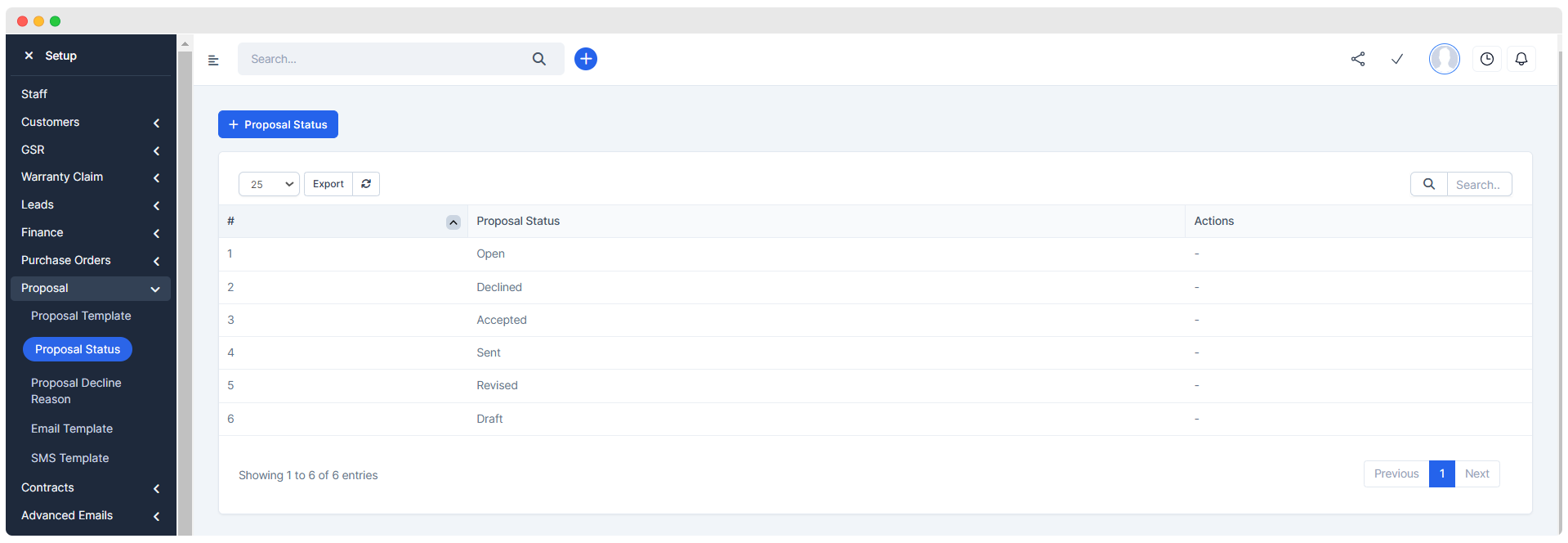
Proposal Status
- user can add new ‘Proposal Status’ and view all in
Setup > Proposal > Proposal Statussection.
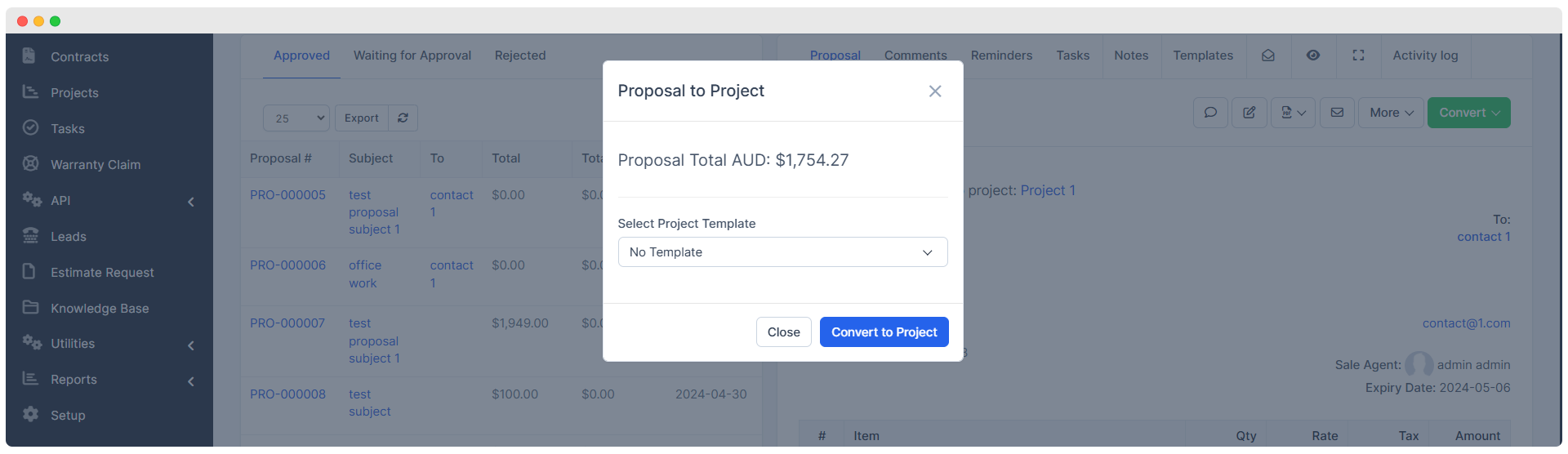
Convert Proposal to Project
- If Proposal is accepted by the customer, then a
Convertoption will be displayed through which Proposal is converted into a Project and is added in the‘Projects’list.
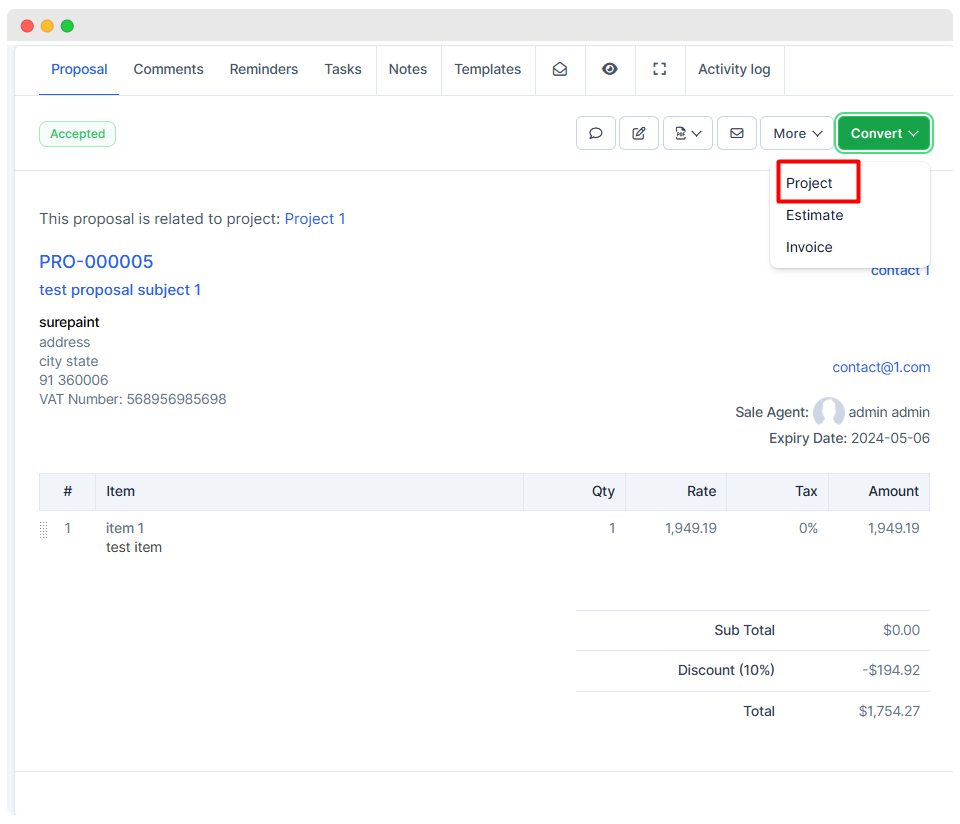
- While converting, if available, a project template can also be selected.